
You have a PDF. You need a quiz. The question is how much of your afternoon you’re willing to sacrifice to make that happen.
If the answer is “none of it,” this guide is for you. I’ll walk you through exactly how to create a quiz from a PDF using AI, step by step.
You’ll also see how this works inside a tool like ProProfs Quiz Maker, where AI gets it right, where it can go wrong, and how to keep your questions accurate to your actual document instead of generic content.
Who this guide is for:
- Trainers and HR teams turning compliance or onboarding content into scored assessments
- Teachers converting chapters or handouts into ready-to-use quizzes
- Course creators generating quiz questions directly from their lesson PDFs
- Anyone who has built a quiz from a PDF once and refuses to do it manually again
How to Create a Quiz from a PDF Using AI?
Here’s the step-by-step process as I ran it on ProProfs Quiz Maker. The AI assistant is built directly into the quiz editor, handles PDF uploads natively, and generates questions grounded in your uploaded content rather than general topic knowledge.
Step 1: Create or Open a Quiz
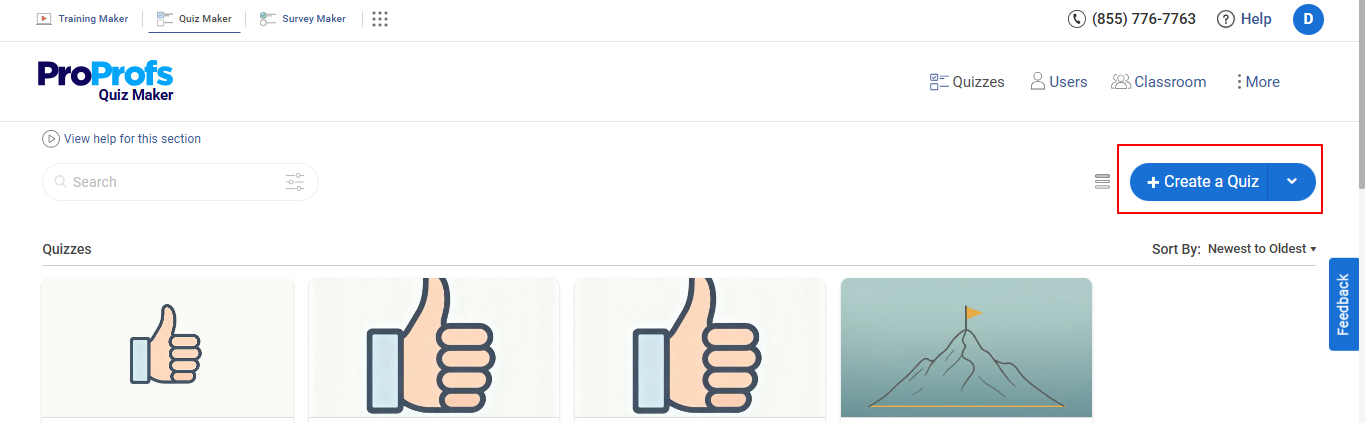
From your ProProfs Quiz Maker dashboard, click Create a Quiz or open an existing one you want to add questions to. Choose your quiz type: scored (for right/wrong assessments) or personality (for surveys). For most PDF-to-quiz use cases, ‘scored’ is the right choice.
Step 2: Upload Your PDF and Prompt the AI
On the Create Scored Quiz screen, you’ll see a text box with an Upload option beneath it that accepts PDF, DOCX, and TXT files. Do both in the same step: upload your PDF and type your prompt in the box before hitting Generate Quiz.
This is where most people underuse the tool. The prompt is not optional filler; it’s how you control what comes out. Here’s a prompt you can copy and adapt:
“Generate 10 multiple-choice questions at intermediate difficulty based only on the attached document. Focus on [specific section or topic if relevant]. Do not use general knowledge about the subject.”
Specifying difficulty and question type in your prompt matters because the AI will make its own choices if you don’t direct it. You can always edit afterward, but getting the generation right the first time is faster.

Let ProProfs AI Build a Quiz
Step 3: Review and Edit Your Generated Questions
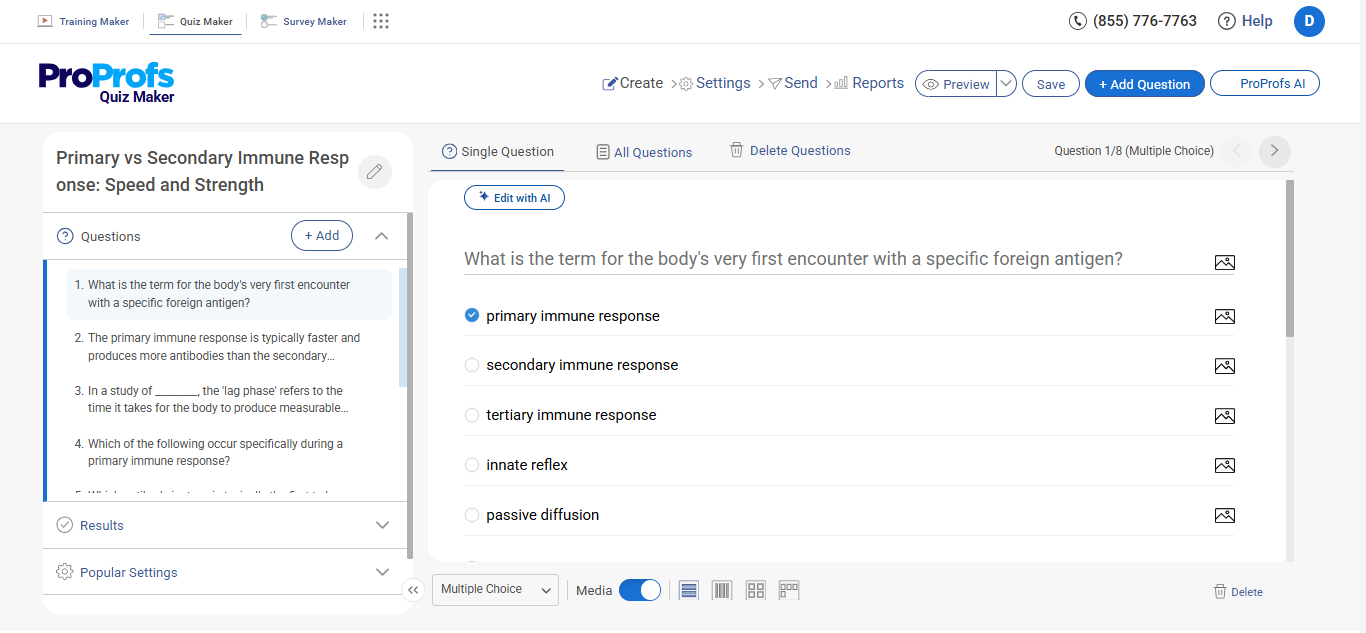
Once the AI generates your quiz, you’ll land in the quiz editor, where you can review every question. This is where you fine-tune: change a question type, reword a question stem, swap an answer choice, or remove anything that drifted outside your PDF’s content. Some educators also run the output through an AI checker at this stage to confirm if the language reads as intended before sharing with students.
Step 4: Add AI-Powered Feedback
ProProfs Quiz Maker lets you generate AI-powered explanations for each correct answer. For training and educational use, do this. It turns every wrong answer into a learning moment rather than just a score deduction.
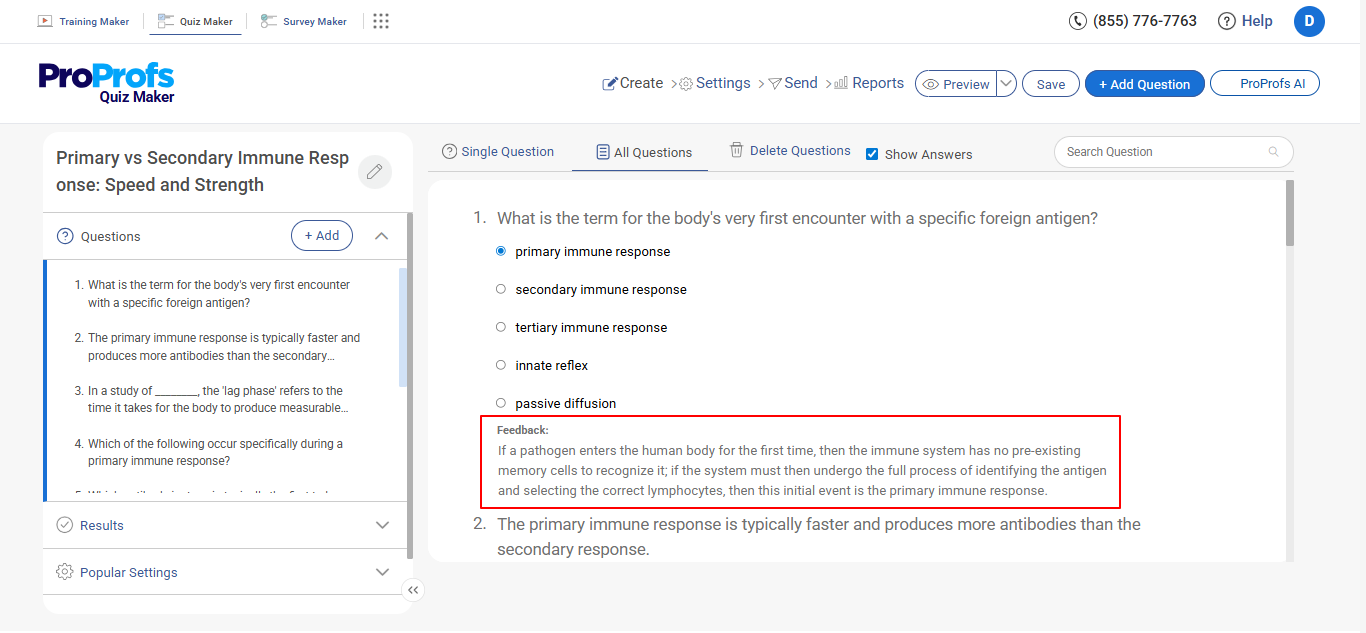
Step 5: Configure Your Quiz Settings
Set your time limits, passing score, question randomization, and any proctoring rules you need. For compliance or certification assessments, question randomization across attempts is worth enabling; it prevents learners from memorizing answer order across multiple tries.
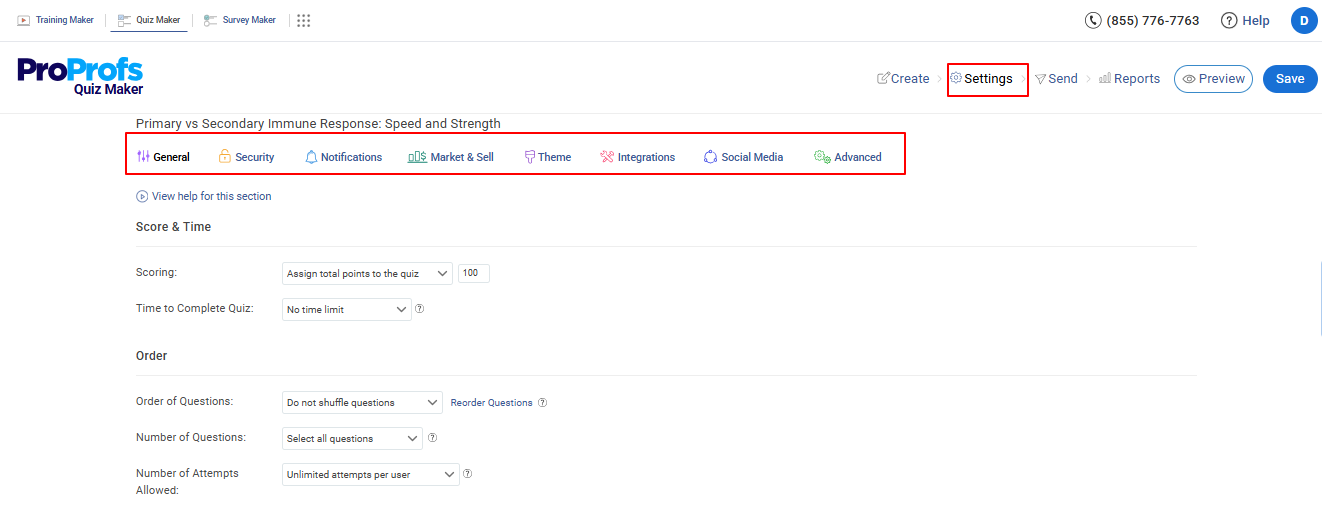
Step 6: Publish and Share
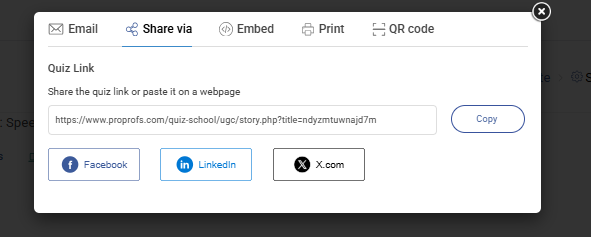
Go to ‘Send’. Share via link, embed on a site, or assign to a group through the classroom feature. Automated certificate delivery is available for learners who pass.
Sounds good? Here’s a short video to get a better idea of this:
What If You Want to Create a Quiz from a PDF Using AI Without a Dedicated Tool?
If you want to test the concept before committing to a platform, Google Gemini, Claude, and ChatGPT all handle PDF uploads and generate quiz questions directly. None gives you a shareable, trackable quiz out of the box, but all three produce solid draft questions you can review and import into a tool later.
Here’s exactly how to do it in each.
How to Create Quiz Questions from a PDF Using Google Gemini
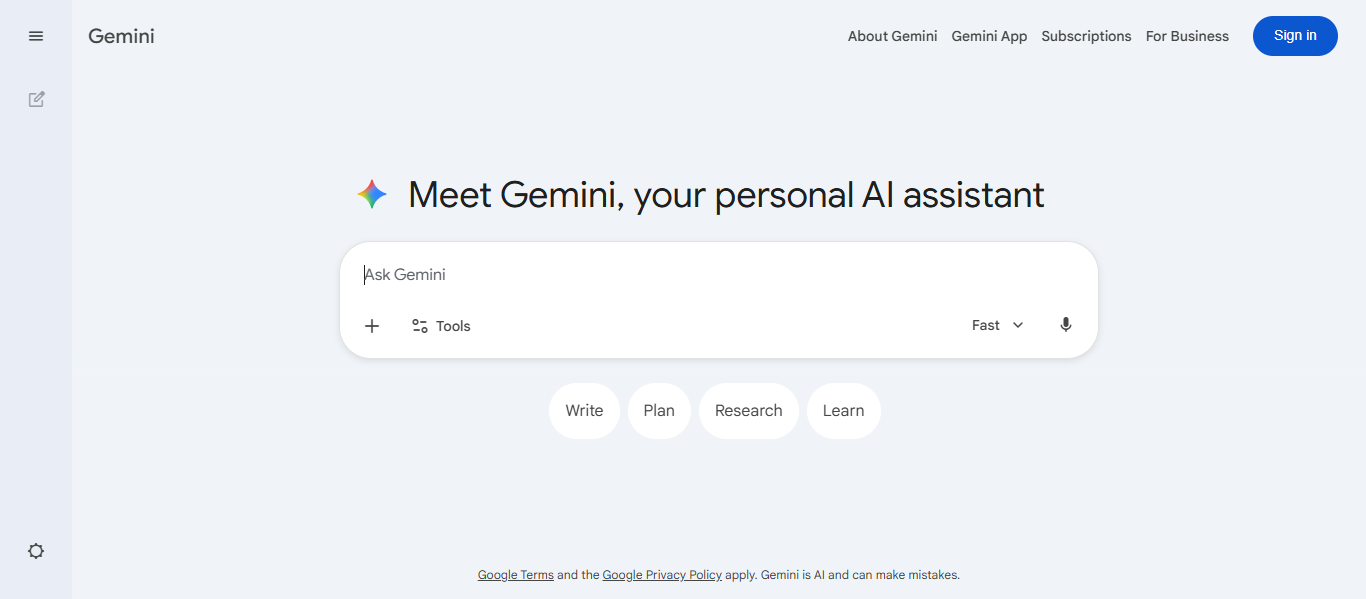
Step 1: Go to gemini.google.com
Open a new conversation, and click the attachment icon (paperclip) to upload your PDF. Both the free tier and Gemini Advanced support file uploads.
Step 2: Paste this prompt and send it
“You are a quiz designer. Based only on the content of the attached PDF, generate [number] multiple choice questions at [basic/intermediate/advanced] difficulty. For each question: write the question stem, provide four answer choices labeled A through D, mark the correct answer, and write a one-sentence explanation of why it’s correct. Do not generate questions based on general knowledge about the topic. Only use information that appears explicitly in the document.”
Step 3: Review and export your questions
Read each question against your PDF. Gemini tends to stay close to source material, but verify that answer choices are meaningfully distinct and that nothing references content outside your document. Then paste the output into your quiz tool, a Google Form, or a document for editing.
How to Create Quiz Questions from a PDF Using Claude
Step 1: Go to claude.ai
Open a new conversation, and click the attachment icon to upload your file. Claude reads the PDF text content directly.
Step 2: Paste this prompt and send it
“You are a quiz designer. Using only the content of the attached PDF, generate [number] quiz questions at [basic/intermediate/advanced] difficulty. Include a mix of question types: multiple choice (4 options, one correct), true/false, and fill-in-the-blank. For each question: write the question, provide the answer options where applicable, mark the correct answer, and include a brief explanation grounded in the document. If any question requires information not found in the PDF, flag it rather than answer from general knowledge.”
Step 3: Review, refine, and export
Claude is particularly good at flagging when a question has drifted outside your document. If something feels off, ask directly: “Is this question based on something in the PDF or from general knowledge?” Copy the output and transfer it to your quiz platform or question bank.
How to Create Quiz Questions from a PDF Using ChatGPT
ChatGPT Plus supports PDF uploads; the free tier does not.
Step 1: Upload your PDF
Go to chatgpt.com, open a new conversation with GPT-5.3, and click the paperclip icon to attach your file.
Step 2: Send this prompt
“You are a quiz designer. Using only the attached PDF, generate [number] multiple choice questions at [basic/intermediate/advanced] difficulty. For each: write the question stem, four answer choices (A–D), mark the correct answer, and add a one-sentence explanation tied to the document. Do not use general knowledge, only what’s explicitly in the PDF.”
Step 3: Review and export
Check that each question stays grounded in your document, not the topic in general. If something feels off, ask: “Where in the PDF does this come from?” Copy the output into your quiz tool of choice. ChatGPT won’t track results or share the quiz for you.
Which Route Makes Sense for Your Situation?
| Situation | Best option |
|---|---|
| Quick personal study, no sharing needed | Gemini or Claude or ChatGPT |
| One-time class review game with no tracking needed | Free tier of a dedicated quiz tool |
| Team assessment where you need to track scores | Dedicated quiz platform with AI (like ProProfs Quiz Maker) |
| Ongoing training program with bulk content | Dedicated platform with PDF upload and question banks |
| Compliance certification or proctored exam | Dedicated platform only |
General AI assistants are genuinely useful for drafting. What they don’t give you is a quiz that lives somewhere, gets shared with learners, tracks results, or issues a certificate. If all you need is a list of questions to study on your own, they’re fast and free. If the quiz needs to do something after you build it, a dedicated platform gets you there without the extra manual steps.
What About Complex PDFs: Can AI Handle Tables, Equations, and Multi-Column Content?
Bluntly: not well. The extraction layer reads text linearly, and non-linear layouts break that process. LaTeX equations, chemical structures, merged-cell tables, and dense multi-column formatting will either get misread or skipped entirely.
Here’s what actually works:
If your PDF is scanned or image-based: Run it through an OCR tool first. Adobe Acrobat, Google Drive (open the PDF, it auto-OCRs), or Smallpdf will convert it to selectable text before you upload anything to a quiz tool.
If your PDF has LaTeX or equations: Paste the equation content as plain text directly into your prompt rather than relying on the PDF extraction. Mathpix is also worth knowing here; it converts equations and math-heavy documents into clean, readable text that AI tools can actually process.
If your PDF has complex tables: Extract the relevant rows as plain text and paste them in. The AI handles structured prose far better than it handles visual table formatting.
Write the formula-specific or table-specific questions yourself once you have the text portions covered. It adds ten minutes and saves you a round of confused output.
Are AI-Generated Quizzes from PDFs Actually Accurate?
Dr. Philippa Hardman, a learning design researcher and one of the sharper voices on AI in education, has written about this. Her work emphasizes using AI to sharpen judgment rather than relying on it to produce final outputs. That’s why I see AI-generated content as a strong first draft, not a finished product.
That framing is useful because it gives you a clear mental model for the review step. You’re not checking whether the AI did its job; you’re finishing the job the AI started.
A few things that consistently improve accuracy in practice:
Keep your PDF clean: copy key sections into a plain-text document before uploading, if you can. Multi-column layouts and visual formatting are the most common causes of extraction errors, and fixing them at the input stage is faster than fixing bad questions after the fact.
Generate in batches, not bulk: if your PDF is long, generate questions section by section. Focused input produces focused output; asking the AI to cover a 40-page document in one pass consistently produces shallower questions with more drift.
Prompt specifically: don’t just say “generate questions.” Tell the AI which section of the document to focus on, what difficulty you want, and what question types you need. Specific prompts get specific questions; vague ones get generic ones.
What Does Good AI Quiz Output Look Like vs. What Should You Flag?
| Signal | What it means |
|---|---|
| Question cites a specific figure, name, or procedure from your PDF | Grounded in your content. Keep it. |
| Answer choices are clearly distinct, and one is obviously correct | Good question structure. |
| Question uses "generally" or "typically" | Likely drifted to general knowledge. Review carefully. |
| Two answer choices are nearly identical in meaning | Edit or discard. |
| The correct answer is context-dependent | Rewrite or remove. |
| Question references something not in your PDF | Discard. |
Is There a Free AI PDF Quiz Generator?
Yes, with honest caveats. Most free tiers cap you at 10 questions per quiz, limit the number of active quizzes, or restrict PDF uploads to paid plans only.
ProProfs Quiz Maker has a forever-free plan that covers short quizzes and core features. Full AI capabilities, including PDF upload, advanced question types, proctoring, and analytics, are on paid plans starting at $19.99/month. For K-12 educators, the pricing structure starts at $4/teacher/month or $0.25/student/month for schools and districts.
If your use case is occasional personal studying, a free tier works. If you’re running training programs or formal assessments at any kind of scale, a paid plan is genuinely worth the math.
Your PDF Won’t Quiz Itself, But Now It Basically Can
Creating a quiz from a PDF using AI is fast when your PDF is clean, your prompts are specific, and you treat the AI’s output as a first draft rather than a finished product. The tool does the heavy lifting on question generation; your job is directing it well and reviewing what comes out.
Clean input is the single highest-leverage thing you can do before you ever hit generate. Everything else, the parameters, the review pass, the feedback settings, the sharing setup, all follows from that.
The AI handles the generation. You handle the judgment. Between the two of you, a 40-page training manual turns into a deployable assessment in under 20 minutes. That’s the deal. Take it.
Frequently Asked Questions

What is the best AI tool to create quizzes from PDFs?
It depends on what you need to do with the quiz. If you need a deployable assessment with grading, analytics, and sharing built in, a dedicated platform like ProProfs Quiz Maker is the faster path. If you just need draft questions for personal study, Google Gemini or Claude handle PDF uploads and generate reasonable questions at no cost.
Can ChatGPT create quizzes from a PDF file?
ChatGPT Plus accepts PDF uploads and can generate quiz questions from them. The output is useful for personal study or drafting, but you'll need to manually transfer questions into a form or quiz tool if you want to share or track results.
Are AI-generated quizzes accurate?
With human review, yes. Without it, maybe. AI generators can drift from your specific content toward general knowledge, or misread a complex PDF layout. For formal assessments, treat every AI-generated question as a draft that needs your sign-off before it goes live.
Can AI generate multiple choice questions automatically from a PDF?
Yes, and multiple choice is typically the most reliable question type for AI generation. Verify that the distractor options are meaningfully different from the correct answer; AI-generated distractors have a tendency to be too similar to each other on the first pass.
How many questions can AI generate from a PDF?
Most tools generate 10 to 50 questions per session. For longer documents, generating section by section consistently outperforms a single bulk pass in terms of question quality and specificity.
Can teachers use AI quiz generators for exams?
Yes, provided they review every question before publishing. AI-generated questions are strong starting points, but the teacher remains accountable for accuracy, fairness, and appropriate difficulty. Treat the AI as a drafting assistant, not a final authority.
Let ProProfs AI Build a Quiz

 We'd love your feedback!
What did you like & how can we make it even better?
 Thanks for your feedback!
 Ask Your Question
Have a question? Get expert help to make your decision easier.