
I’ve watched a lot of YouTube lectures.
And I mean a lot. The kind where you’re nodding along, genuinely absorbing everything, only to realize 20 mins later you can’t reconstruct a single argument from memory.
It’s a weird thing. The video felt productive. It was not.
The fix, it turns out, is embarrassingly simple: test yourself. Force your brain to retrieve what it just consumed.
That act of retrieval, what researchers call the Testing Effect, strengthens memory far more than rewatching ever will.
And you can now create a quiz from a YouTube video using AI in about 3 mins, without writing a single question yourself.
This guide is for:
- Students grinding through YouTube lecture series and actually trying to retain the material
- Teachers building quizzes from educational videos without the manual grind
- Course creators and trainers turning video content into structured learning
- L&D professionals who need faster quiz creation without sacrificing quality
What Is an AI YouTube Quiz Generator?
Most tools support multiple-choice, true/false, short-answer, and fill-in-the-blank formats. The better ones let you set difficulty, question count, and in some cases, specific time ranges within the video.
The quality gap between tools is real. Some pull questions from whatever terms appear most frequently in the transcript, which often means quizzing you on things mentioned in passing rather than the concepts the whole video was building toward. The ones worth using identify learning weight, not just word frequency.
How to Create a Quiz From a YouTube Video Using AI
This is what you came here for, so let’s get into it.
Step 1: Pick your tool based on what you’re actually building
Before pasting any URL, spend thirty seconds on this. Are you building a graded quiz for a class? A self-study test? A training assessment with a completion certificate? The answer changes, depending on which tool makes sense.
If you’re not sure yet, start with ProProfs Quiz Maker. It has a free tier and covers most use cases.
Step 2: Grab the YouTube URL
Open the video. Copy the full URL from the address bar. One thing worth checking before you paste it anywhere: does the video have captions? Auto-generated captions are fine for most videos.
No captions at all means no transcript, which means the AI has nothing to work from. If the video is caption-free and important enough to quiz on, upload a manual transcript if the tool supports it.
Step 3: Paste it in and configure before you generate
Most tools give you a text box, a “Generate” button, and not much else visible. Don’t just hit generate on the defaults.
Look for settings on:
- Number of questions (10 to 20 is usually the sweet spot; quality drops above that)
- Question format (multiple choice, true/false, short answer)
- Difficulty level
- Time range or chapter focus, if supported
That last one matters more than it sounds. If you’re working with an hour-long lecture and only need questions on the last section, tools that let you generate a quiz from a video lecture by segment will save you a lot of editing time.
Step 4: Review before you use it
This is where most people cut corners. Don’t.
AI occasionally marks the wrong answer as correct. It generates questions on incidental details while skipping the actual core argument. It sometimes produces distractors so obviously wrong that the quiz stops being a challenge.
Go through every question and check: Is this accurate? Is it testing something that matters? Would a learner who watched the video know the answer to this?
Edit freely. Treat the generated output as a first draft, not a finished product.
Step 5: Export in whatever format fits your workflow
Depending on the tool: PDF, Google Forms, CSV for LMS import, or direct integration with platforms like Canvas, Moodle, or Blackboard. If you need scoring, certificates, or learner tracking, a platform like ProProfs is the right choice.
Watch: How to Create a Quiz
The Best AI Tools to Generate Quizzes From YouTube Videos
Not every tool here does the same job. Some are built for classrooms, some for self-study, some for professional training. I’ll start with the one I’d actually recommend for most use cases, then work through the rest by what they’re best at.
Here’s a table for your quick glance:
| Tool | Best Use Case | Use When |
| ProProfs Quiz Maker | Easy AI-powered professional training & full LMS workflow | You need scoring, tracking, and certificates |
| QuizGecko | Quick single-video quizzes | You need something fast with no setup |
| Quizify | Editorial control before sharing | You want to edit before it reaches learners |
| Mindgrasp | Full study system (notes + quiz) | You’re studying independently |
| Quizalize | Live classroom engagement | You’re running a real-time class session |
| Formative AI | Google Classroom integration | Your workflow lives in Google |
| Edulastic | Standards-aligned K-12 assessment | Curriculum alignment is required |
| Kahoot! | Participation-first review | Engagement matters more than evaluation |
| Gimkit | High school game-style review | Students need a Kahoot! alternative |
| Quizizz | Live + self-paced flexibility | You need one tool for both formats |
ProProfs Quiz Maker
Best for: Anyone who needs an end-to-end quiz ecosystem, from question generation to delivery, scoring, certification, and learner analytics, all in one place.
ProProfs Quiz Maker is the most complete video to quiz AI tool on this list. It takes you from a YouTube URL to a fully delivered, graded quiz without switching tools. It has built-in scoring, grading, time limits, and randomization. Give it a try:

Let ProProfs AI Build a Quiz
Learners finish with a certificate. You finish with a dashboard showing individual scores, completion rates, and exactly which questions tripped people up most. It connects with your LMS, supports white-labeling, and handles everything from a quick knowledge check to a multi-stage training assessment.
Use it when the quiz needs to actually mean something, for the learner and for you.
Watch: How to Analyse Quiz Reports & Statistics
QuizGecko
Best for: Quick quizzes from a single video with minimal setup.
Paste a YouTube URL, get multiple-choice, true/false, and short-answer questions back. Export to PDF or Google Forms. The free tier has a question cap per generation but handles most single-video tasks without friction.
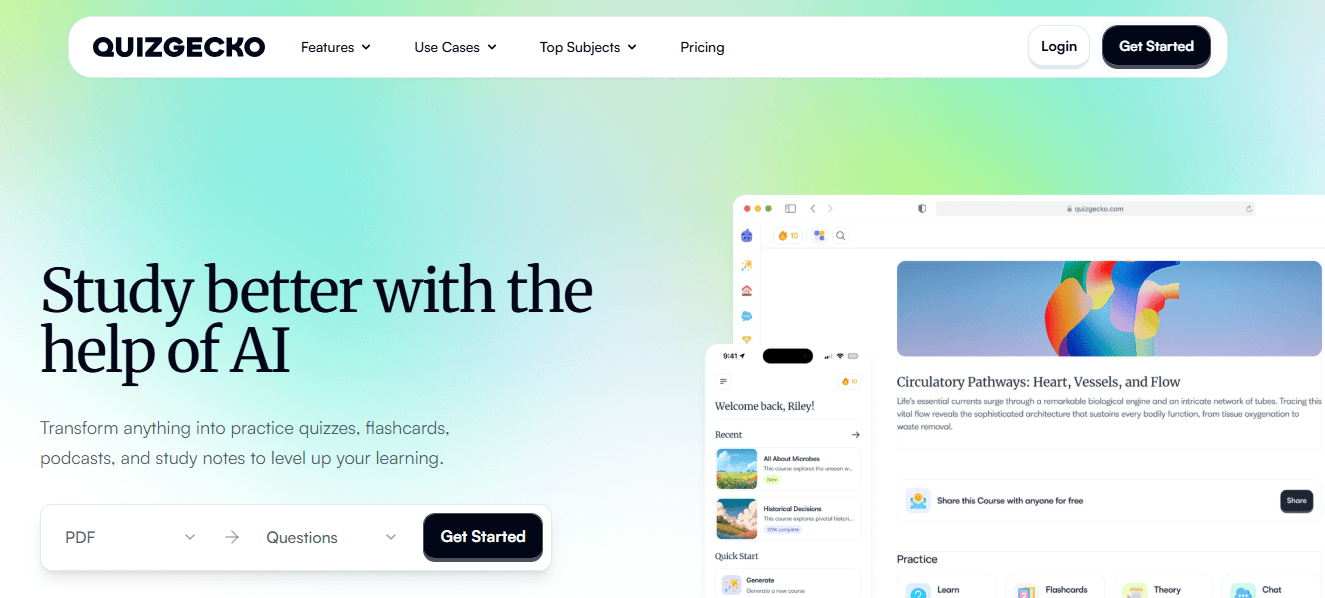
Use it when you need something fast and don’t require tracking or delivery features.
Quizify
Best for: Educators who want to edit before sharing.
Accepts YouTube URLs, PDFs, and plain text. Generates multiple question types and includes a question editor so you can clean up the output before it goes to students. Quizzes are shareable via link or embeddable in course materials.
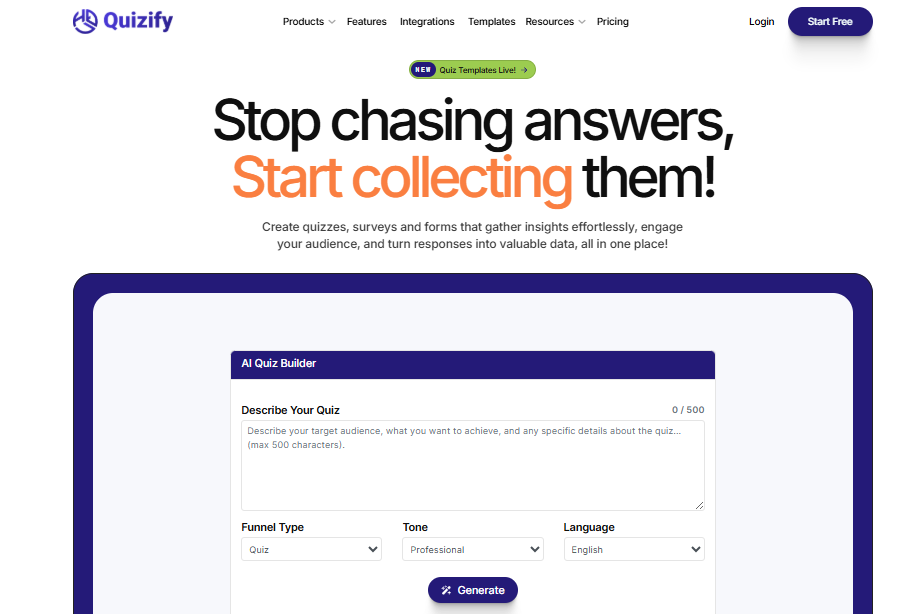
Use it when you want more editorial control over what the AI produces before it reaches learners.
Mindgrasp
Best for: Learners who want a full study system, not just a quiz.
Paste a YouTube URL, and Mindgrasp generates notes, a summary, and quiz questions in one pass. It’s the closest thing to an automatic quiz generator from video content that also builds the study material around it.
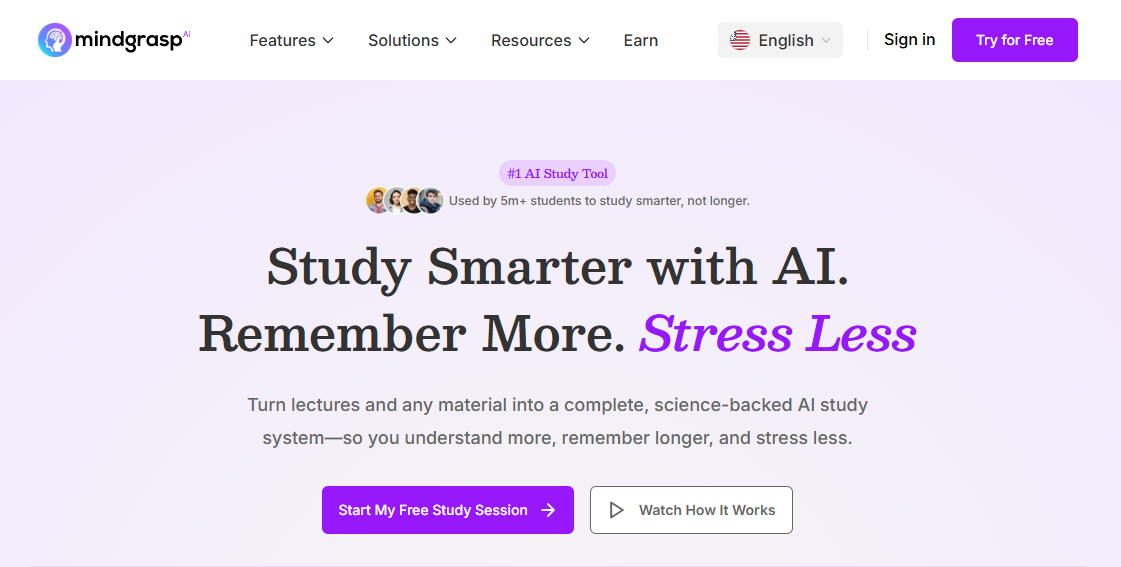
Use it when you’re studying independently and want to turn a YouTube lecture into a quiz and a set of notes without switching tools.
Quizalize
Best for: Live classroom sessions with real-time feedback.
Gamified delivery format. Teachers see which students are struggling on which concepts in real time. Less suited for self-paced or professional training, but strong for engagement during class.
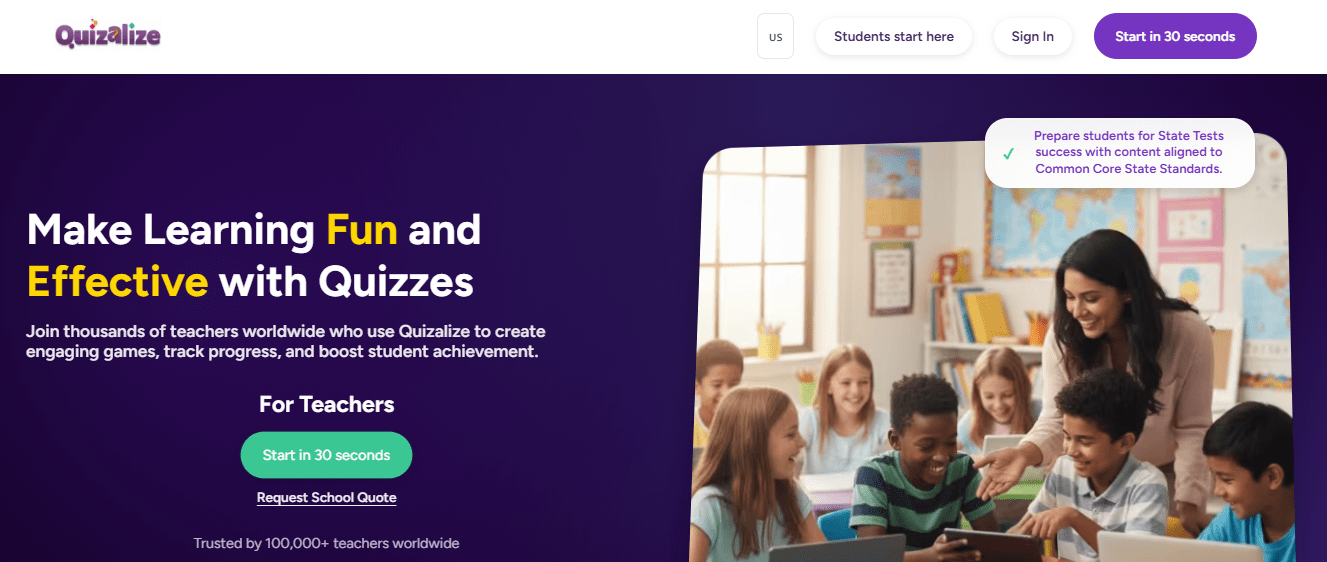
Use it when you’re running a live review session and want students competing rather than just clicking through.
Formative AI
Best for: Teachers already inside Google’s ecosystem.
Generates questions from video content and embeds quizzes inline with instructional material. Integrates cleanly with Google Classroom.
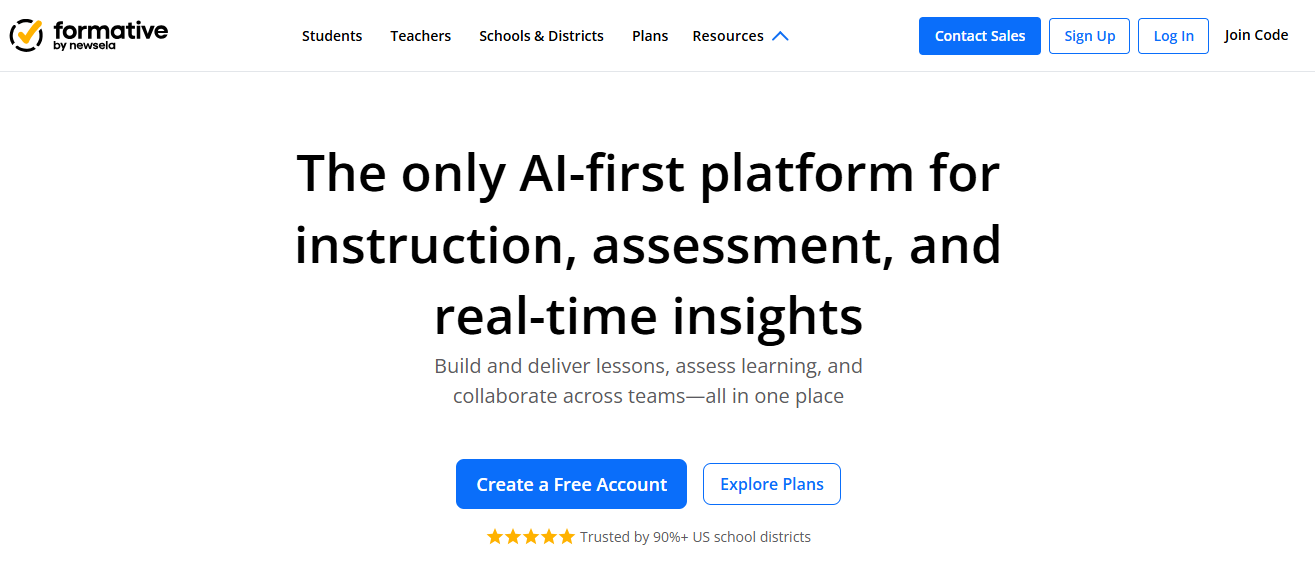
Use it when your entire workflow lives in Google, and you want the quiz to live alongside the lesson, not separately.
Pear Assessment (Formerly Edulastic)
Best for: K-12 teachers who need standards-aligned questions.
AI-assisted question creation with auto-alignment to Common Core and NGSS. You can blend AI-generated questions with content from an existing library.
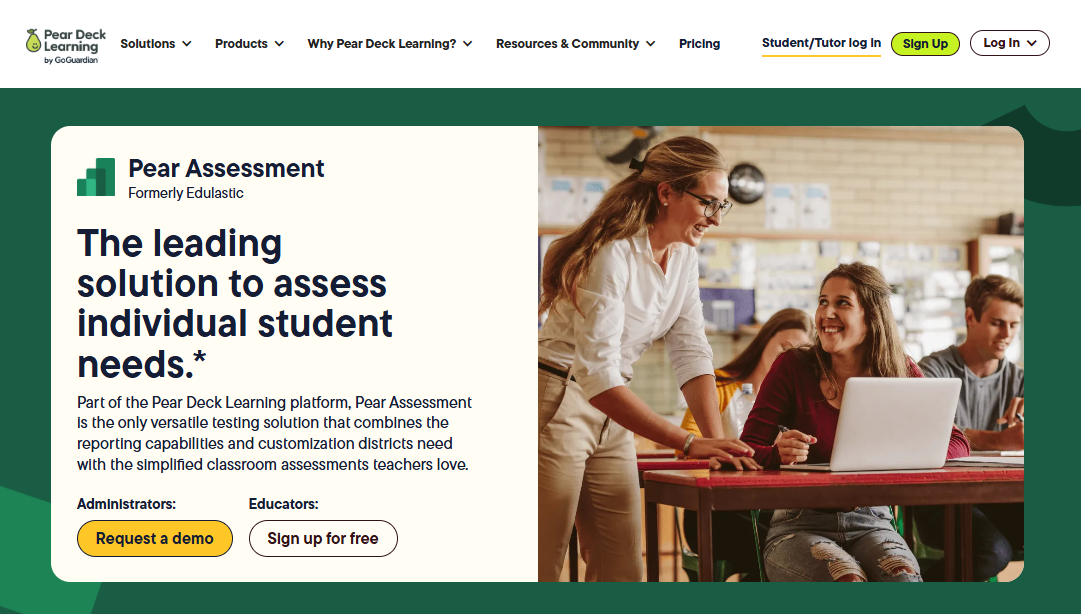
Use it when curriculum alignment matters, and you need to prove it.
Kahoot!
Best for: Engagement-first review sessions.
The AI question generator works from video transcripts. The delivery format is competitive and game-style. Not built for graded assessments.
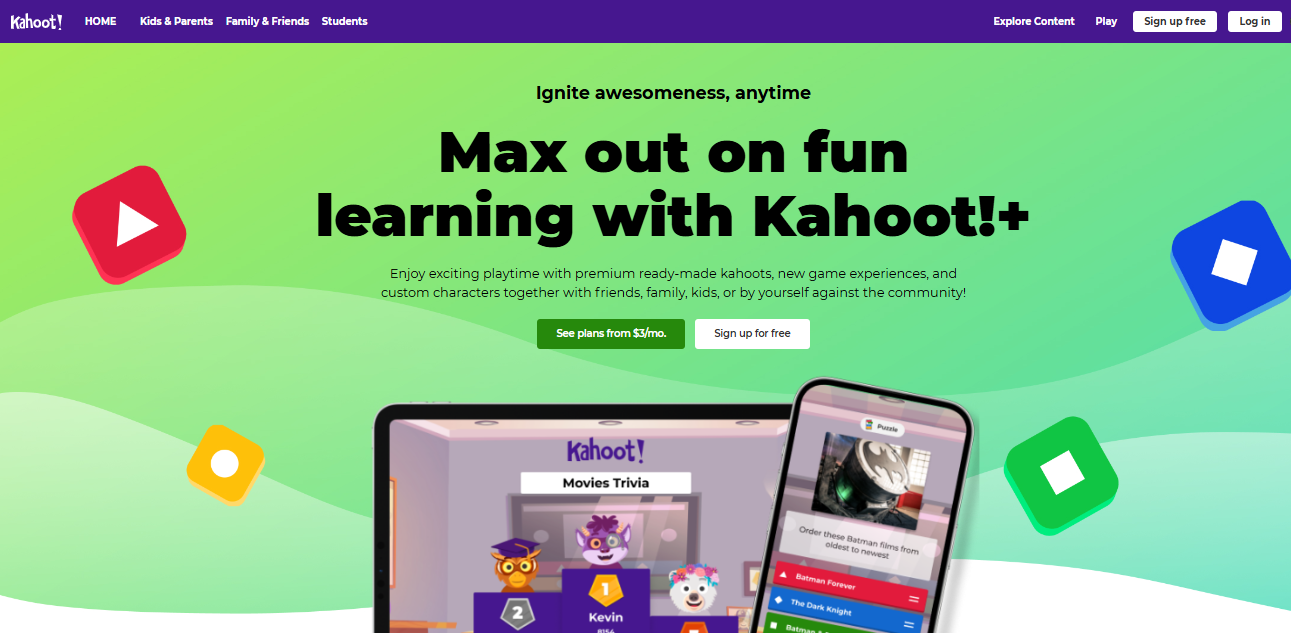
Use it when the goal is energy and participation, not evaluation.
Gimkit
Best for: High school review sessions where game mechanics drive focus.
Similar to Kahoot! in format, with an AI layer for building question sets from uploaded content. Popular with secondary school teachers for making review less of a slog.
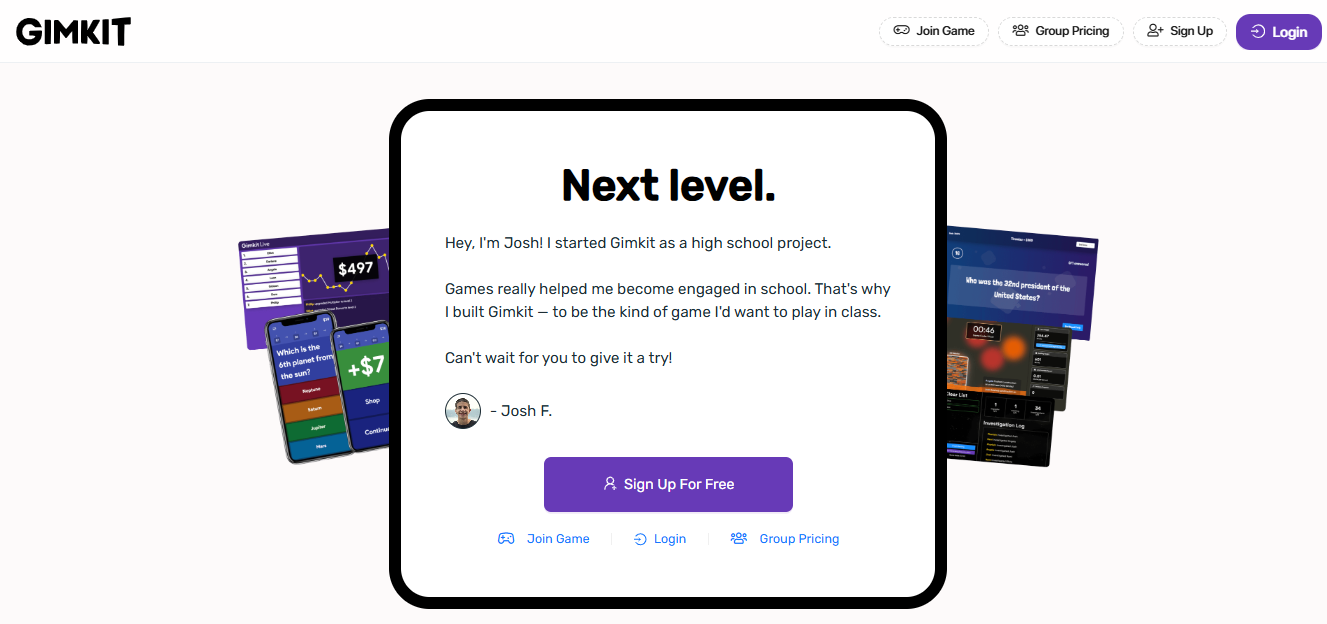
Use it as a Kahoot! An alternative when your students need a change of pace.
Wayground (Formerly Quizizz)
Best for: Flexible delivery across live and self-paced formats.
AI question generation from text and video content. Works for both live sessions and assigned self-paced quizzes. Solid analytics and a genuinely functional free tier.
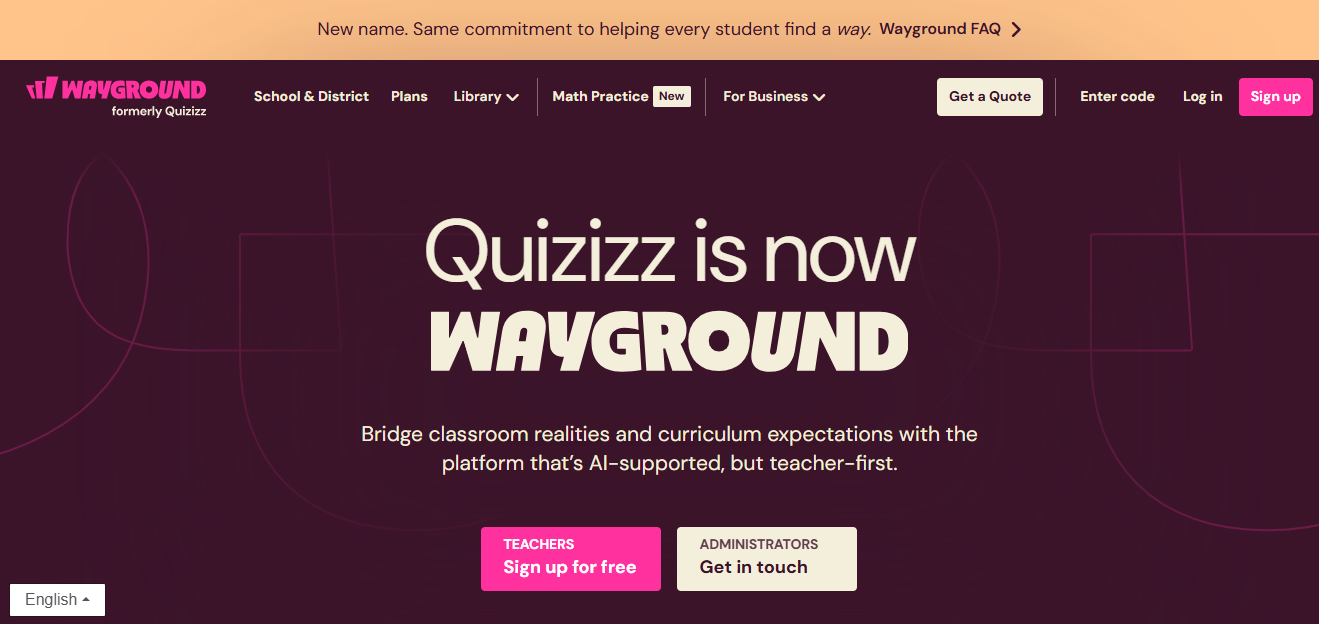
Use it when you need one tool that handles both classroom sessions and homework-style assignments.
What AI Gets Wrong About Quiz Generation (and How to Fix It)
Here’s something worth knowing before you trust any output you generate.
Most AI quiz generators analyze a transcript and build questions from the most frequently mentioned terms and facts. The problem is that frequency in a transcript doesn’t equal importance in a lecture. A good instructor might spend most of their airtime on context and examples, with the actual key concept landing in two sentences near the end. The AI will often quiz you heavily on the context and miss the point entirely.
This isn’t a flaw that gets patched. It’s a structural limitation of how these tools process language.
A few practical ways to work around it:
- Use chapter timestamps: Tools that let you generate a quiz from a video lecture by time range produce sharper, more relevant questions than whole-video processing. Select only the section you actually care about.
- Set a topic seed: Some tools let you enter key concepts or keywords before generating. Use that field. Tell the AI what matters.
- Cut aggressively: When reviewing the output, delete any question that tests a detail rather than a concept. If a learner could get it right without understanding the video’s main argument, it doesn’t belong in the quiz.
Good AI-assisted quiz creation is fast. It is not zero-effort.
Watch: How to Use AI Quiz Maker to Create a Quiz in Seconds
How to Actually Retain What You Learn From YouTube (Beyond Just the Quiz)
The Testing Effect I mentioned at the top, where retrieval itself strengthens memory, works best inside a loop, not as a one-time event.
Retention ≈ e−t/S
Where t is elapsed time, and S is memory strength. Every retrieval event increases S, which slows the decay curve. The practical implication: one quiz immediately after watching is good. The same quiz, 48 hours later, is significantly better. A third pass a week out is better still.
Here’s the workflow I’d actually recommend:
- Watch the video. Don’t take notes yet.
- Use a tool like Mindgrasp or NotebookLM to generate structured notes from the video. Read them once.
- Generate a quiz using any of the tools in this guide. Take it without looking at your notes.
- Review every wrong answer at the source timestamp in the video.
- Add concepts you missed twice to a spaced repetition flashcard deck (Anki works well for this).
- Retake the quiz 48 hours later.
Most learners stop at step 3. Steps 4 through 6 are where the actual retention happens.
Free vs. Paid: The Honest Answer
NotebookLM is free. Quizizz has a functional free tier. If you’re a student quizzing yourself on one video at a time, free tools are genuinely sufficient.
The ceiling appears quickly when you need:
- More than a handful of questions per generation
- Export to LMS-compatible formats
- Scoring, grading, and certificate delivery
- Analytics on who took the quiz and where they struggled
- Custom branding and white-labeling
- Team collaboration and quiz sharing
If any of those matter to your workflow, you’re buying them regardless of which paid tool you choose. The question is which platform gives you the best return on the features you’ll actually use.
For professional training and education, ProProfs Quiz Maker covers the full list. For lighter use cases, QuizGecko and Quizizz are reasonable mid-tier options.
The Video Was Never the Problem. What You Did After Was.
Watching a YouTube lecture and feeling informed is easy. Actually remembering it, explaining it, or applying it later is where most people struggle.
That’s where AI changes things.
You can now turn any YouTube video into a quiz in minutes. Test yourself while it’s still fresh, then come back 48 hours later. That second attempt is what really locks the learning in.
If you’re creating quizzes for others, ProProfs Quiz Maker makes it simple. Add the video, generate questions, and track how people perform.
If it’s just for you, any free tool works. What matters is that you actually test yourself, not just watch.
The tools are ready. The question is whether you’ll use them.
Frequently Asked Questions

What is the best AI tool to create quizzes from YouTube videos?
ProProfs Quiz Maker is the strongest option for professional and educational use, with AI question generation, direct video embedding, LMS integration, and learner analytics. For quick self-study quizzes, QuizGecko and Quizizz are solid free-tier choices.
How do teachers create quizzes from educational videos?
Paste the YouTube URL into an AI quiz generator, configure question type and count, review and edit the output, then export to Google Forms, an LMS, or as a shareable link. Tools like Edulastic also auto-align questions to curriculum standards.
Can ChatGPT create a quiz from a YouTube transcript?
Yes, if you paste the transcript text in manually. ChatGPT won't pull a transcript automatically, so you'll need to copy it from YouTube's built-in transcript viewer first. Dedicated tools like QuizGecko handle the URL-to-quiz pipeline without that extra step.
Are AI-generated quizzes accurate?
Mostly, but not always. AI occasionally marks incorrect answers as correct or generates questions around incidental details rather than core concepts. Always review AI output before using it with students or learners.
Can I generate multiple choice questions from a video?
Yes. Multiple choice is the default output format for most AI quiz generators. Better tools also generate strong distractors, plausible wrong answers that make the question genuinely challenging rather than obvious.
Is there a free AI YouTube quiz generator?
Yes. ProProfs Quiz Maker, Quizizz, QuizGecko, and Quizify all have free tiers. NotebookLM generates quiz-style questions from video content at no cost. Free plans typically cap question count and limit export options.
How many questions can AI generate from a video?
Most tools let you set anywhere from 5 to 50 questions per generation. Quality tends to drop above 20. For most videos, 10 to 15 well-reviewed questions outperform 30 unreviewed ones every time.
Let ProProfs AI Build a Quiz

 We'd love your feedback!
What did you like & how can we make it even better?
 Thanks for your feedback!
 Ask Your Question
Have a question? Get expert help to make your decision easier.