

Over time, I’ve noticed that text-heavy quizzes don’t always show what learners truly understand. Sometimes they measure how well someone reads the question, not how well they know the topic. That’s why I often lean on visual formats and learned how to create a hotspot quiz for lessons that are naturally image-based.
A hotspot quiz is straightforward. You show an image and ask learners to click the correct spot. It works well for maps, diagrams, charts, lab models, and anatomy visuals. Instead of choosing an option, learners identify the answer directly on the image.
In my experience, hotspot questions make quizzes easier to follow, keep learners involved, and help instructors spot gaps faster. In this guide, I’ll explain when hotspot questions are a good fit and walk you through creating your first hotspot quiz.
What Are Hotspot Quizzes?
Hotspot quiz questions are image-based questions where learners answer by clicking a specific area on an image. Instead of choosing from text options, they identify the correct spot visually. This format fits best when the skill being assessed is recognition, location, or visual identification.
Here are a few examples of hotspot questions:
- Geography: Click the approximate location of Paris on a world map
- Science: Click the part of a plant cell responsible for photosynthesis
- Anatomy: Click the femur on a skeleton diagram
- Math: Click the triangle in a set of mixed shapes
- History: Click the person in the image who matches the prompt
- Software training: Click the “Export” button in a product screenshot
If the answer is something a learner should be able to point to on a visual, a hotspot question usually fits naturally.
How Do Hotspot Questions Work?
Hotspot questions work by turning an image into the answer space. The learner sees a visual and responds by clicking the correct area, instead of selecting an option or typing a response.
When you create the question, you can define one hotspot or multiple hotspot areas, depending on what you’re assessing. A single hotspot works well when there’s one clear target. Multiple hotspots make sense when learners need to identify several items in the same image, like three bones, two hazards, or five components.
This is also where settings matter. Some tools let you control how many clicks a learner can make, whether they can clear a marker before submitting, and how strict scoring should be for multi-hotspot questions.
Since hotspot answers are tied to predefined regions, most online quiz platforms can score them instantly. That’s why hotspot questions and most other common question types can be graded automatically without manual checking.
Watch: How to Automate Quiz Scoring & Grading
How to Create a Hotspot Quiz With an Online Quiz Maker
Creating a hotspot quiz is mostly about picking the right visual and defining what counts as a correct click. To keep things concrete, I’m using ProProfs Quiz Maker as an example, but the workflow will feel familiar if you’ve used other online quiz tools.
Step 1: Start a New Scored Quiz
From your quiz dashboard, click Create a Quiz and select Create Your Own to open the editor.
Step 2: Add a Hotspot question
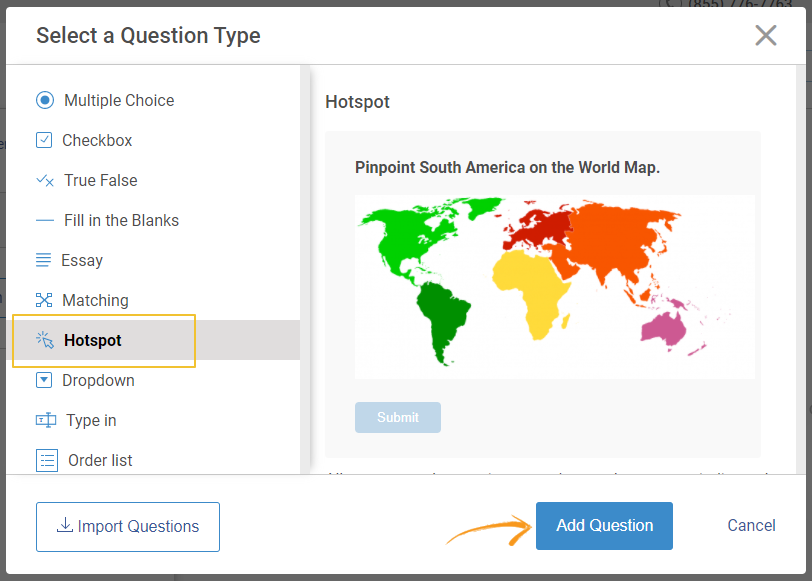
In the quiz editor, click “Add Question.” From the question-type overlay, select Hotspot and add it. Then type your question prompt, keeping it specific so learners know exactly what they’re expected to identify on the image.
Step 3: Add or Replace the Image
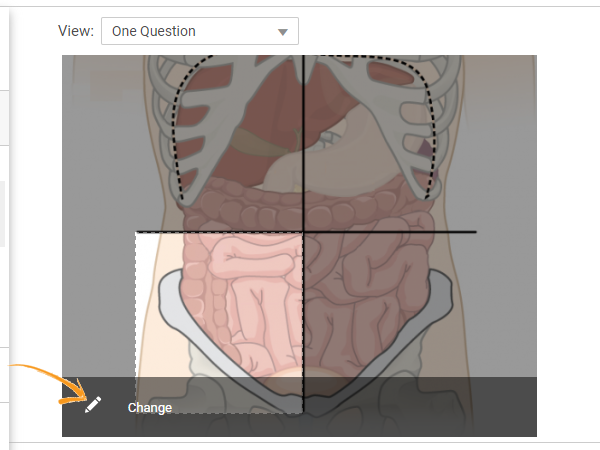
Use the default image as a placeholder, then click Change to replace it. You can upload your own image, pull one from a built-in library, or search for one online from within the editor. If needed, use Edit Image to crop or adjust the visual so the target area is clear.
Step 4: Mark the Correct Hotspot Area
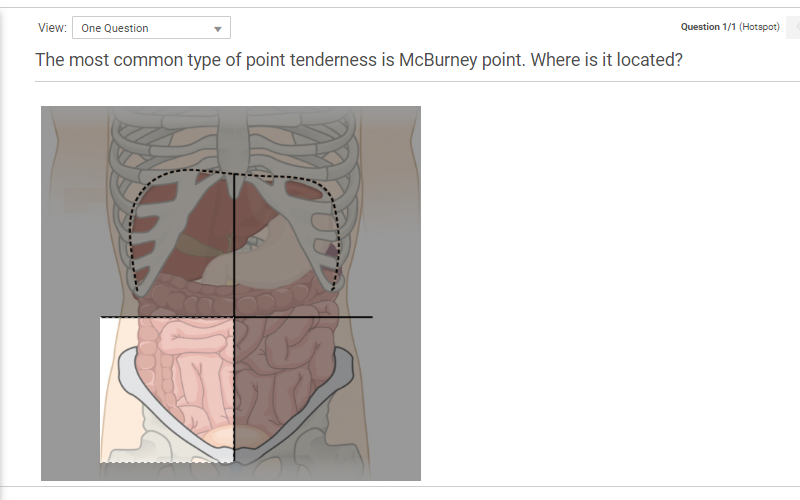
Click and drag over the correct area to create the hotspot. You can adjust the hotspot size based on how strict you want the answer to be. I usually make it fair rather than pixel-perfect, especially for maps, diagrams, and small labels.
If the question needs more than one correct area, mark multiple hotspots on the same image so learners can click all the right spots.
Step 5: Finish the Question and Set Scoring
Click Done to complete adding the question. If you want to assign points per question, go to Popular Settings and choose Assign points to each question, then set the score. You can also add feedback for incorrect attempts, so a wrong click turns into a quick learning moment.
Check before sharing how the tool scores multi-hotspot responses. In some setups, partial credit is possible and makes sense. In others, one wrong click can cancel the whole response.
Step 6: Build, Review, and Share
Repeat the same flow for the rest of your questions. Before you finalize, preview the quiz to confirm the hotspot areas behave as expected. When you’re ready, share it by email, use a direct link, or embed it wherever your learners will access it.
Best Practices for Writing Great Hotspot Questions
Hotspot questions are simple to attempt, but they take a bit of care to design well. Small choices like the image you pick, how you word the prompt, and how tight the hotspot is can decide whether the question feels fair and useful or frustrating and vague.
1. Start with a clean, focused visual
Choose an image where the target stands out. If the visual is cluttered, learners spend time hunting instead of thinking. Crop or simplify the image so attention stays on the concept.
2. Write an instruction that leaves no room for guessing
Be specific about what learners should click. “Click the femur” is clearer than “Identify the leg bone.” If there are similar-looking parts, add a small cue to narrow it down.
3. Make the hotspot fair, not pixel-perfect
A tiny hotspot can penalize learners who know the answer but miss by a fraction. A huge hotspot makes guessing too easy. Aim for the natural boundary of the target with a small buffer.
4. Avoid accidental ambiguity
If two areas could reasonably be correct, refine the prompt or switch the image. The goal is to test understanding, not interpretation.
5. Use multiple hotspots only when the instruction is crystal clear
If learners need to click more than one area, say exactly how many (for example, ‘Click the three arteries’). This avoids partial-answer confusion.
6. Plan scoring behavior for multi-hotspot questions
If learners need to click multiple areas, decide whether partial credit should be allowed. If the goal is diagnostic learning, partial credit often makes the results more useful. If the goal is strict certification, you may want all-or-nothing.
7. Use feedback to reinforce learning
Short feedback helps, especially when learners click near the right area. A quick correction turns the miss into a learning moment.
8. Use the right hotspot shape when the target is irregular
Not every answer area is a neat rectangle. If your tool supports different shapes or freeform marking, it’s worth using those when the target has a curved boundary or an uneven outline. It improves accuracy and reduces accidental misses.
9. Preview the quiz before sharing
Test the question like a learner would. Check that the hotspot works as expected and that the image scales well on phones and tablets.
When Hotspot Quizzes Work Best
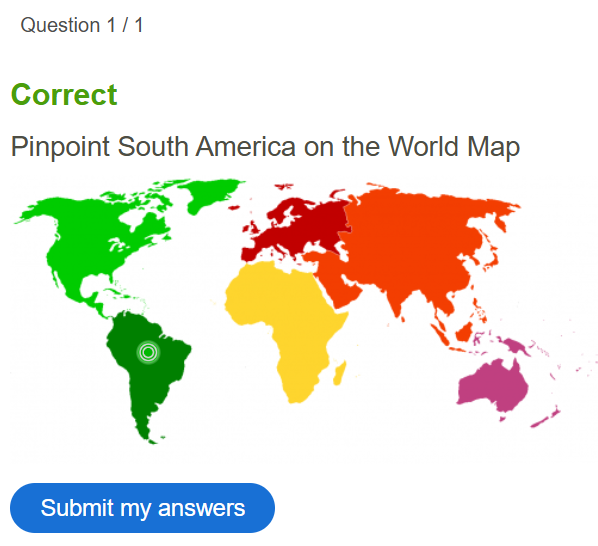
Hotspot quizzes are most useful when you want to assess how learners interpret a visual, not just what they can recall. The click data is diagnostic. It shows which elements learners consistently mix up and where their attention goes, so you can refine instruction and improve the next quiz with evidence, not guesswork.
What Hotspot Quizzes Are Uniquely Good At
- Checking “can you locate it” skills, not just recall
- Assessing real visuals, where learners must identify the correct part in context
- Highlighting common misconceptions when wrong clicks cluster in the same area
- Showing near-correct understanding when clicks land close to the right spot
- Handling multiple targets in one image when the task is “find all the correct parts”
Where Hotspot Questions Fit Naturally
- Geography: click a city, region, river, border, or landmark on a map
- Science: label parts of a diagram, read a graph, identify elements in an experiment setup
- Anatomy and Medical Training: click an organ, bone, pain point, or injection site
- Math and Geometry: select a shape, angle, plotted point, or region on a graph
- Software and Product Training: click the right button, menu, or setting in a screenshot
- Workplace and Safety Training: click hazard zones, equipment parts, or correct placement areas
A quick way to decide is this: if the best proof of understanding is “show me where it is,” hotspot is a strong fit. If the learner must explain reasoning in words, use another question type. For multiple hotspots, state how many targets learners should click.
Strengthen Learning Retention With Visual Hotspot Quizzes
Hotspot quizzes look simple, but the quality comes from the choices you make. A clear visual, a focused prompt, and fair hotspot zones can reveal what learners truly recognize. Done well, they support retention because learners learn by spotting and confirming, not just reading.
Before you share, run a quick preview like a learner would. This helps you catch scoring behavior for multi-hotspot questions, confirm the hotspot feels fair, and check mobile taps. It also keeps small setup issues from turning into avoidable confusion later. Once your structure works, reuse it with new visuals so you can build fresh assessments faster.
If you want to create hotspot quizzes that are easy to run at scale, ProProfs Quiz Maker supports automated grading and keeps setup smooth. It also includes AI quiz creation for drafting questions, while you still control the image and hotspot marking.
Frequently Asked Questions

What are some hotspot quiz examples?
A typical example is a map question that asks learners to click the location of a city, or an anatomy diagram that asks them to click a specific bone or organ. The answer is the correct spot on the image, not a text option.
Can a hotspot question have more than one correct area?
Yes. A single question can include multiple hotspot areas, which is useful when learners need to identify several parts on the same image. The prompt should clearly say what to click and how many areas to select.
Do hotspot quizzes work on phones and tablets?
They usually do, but it’s worth previewing the quiz on mobile before sharing. Images can scale differently on smaller screens, and hotspots that feel easy on a desktop may be harder to tap on a phone.
Can I use my own image and edit it inside the quiz tool?
Yes. Most tools allow you to upload your own visuals, like diagrams, maps, photos, or screenshots, to create a quiz using hotspot questions. Many also include basic editing so you can crop or adjust the image before marking hotspot areas.

Let ProProfs AI Build a Quiz

 We'd love your feedback!
What did you like & how can we make it even better?
 Thanks for your feedback!
 Ask Your Question
Have a question? Get expert help to make your decision easier.