
If you’re an online teacher today, you probably don’t need more apps. You need online teaching tools that actually make your day easier instead of adding more tabs, logins, grading work, and classroom chaos.
Many educators are stuck switching between disconnected teacher tools online, assignment apps, quizzes, communication platforms, and video lessons.
According to the Pew Research Center in 2024, 84% of public K-12 teachers said there isn’t enough time in the workday to complete everything expected of them.
That’s exactly why I put this guide together for you. I’ve included the best apps for teachers, secure online exam tools, AI-powered lesson planning platforms, and online teaching and learning platforms for grading, collaboration, and student progress tracking.
So you can build a simpler teaching workflow that saves time and keeps students more engaged.
10+ Best Online Teaching Tools
The good news is that you do not need 15 disconnected apps for teachers and learning platforms to solve these problems.
I’ve included the best tools for online teaching that actually help with grading, engagement, secure assessments, collaboration, lesson delivery, and student progress tracking. So you can build a simpler and far more effective teaching workflow.
| Tool | Best For | User Rating | Pricing |
| ProProfs Quiz Maker | Secure online exams, AI quiz generation, and student learning gap analysis | 4.5/5 (Capterra) | Free plan available; Paid plans start from $4/teacher/month |
| ProProfs Training Maker | Easy course creation & delivery for employee training, compliance & skill assessment | 4.8/5 (Capterra) | Free plan available; Paid plans start from $1.99/learner/month |
| Kahoot! | Live classroom engagement and concept review | 4.7/5 (Capterra) | Starts from $19/month |
| Quizizz (Wayground) | Self-paced quizzes, homework, and practice tests for K-12 | 4.3/5 (Capterra) | Custom Quote |
| Nearpod | Interactive lessons and real-time student participation | 4.7/5 (Capterra) | Starts from $159/year |
| Edpuzzle | Interactive video learning and flipped classroom teaching | 4.6/5 (Capterra) | Starts from $15/month (Billed Annually) |
| Google Classroom | Assignment management and student progress tracking | 4.6/5 (Capterra) | Starts from $4/license/month |
| MagicSchool AI | AI lesson planning and reducing teacher admin work | 4.7/5 (Capterra) | Starts from $8.33/user/month |
| Canva for Education | Visual learning materials and classroom presentations | 4.7/5 (Capterra) | Free for verified educators |
| Zoom | Live online teaching and virtual classroom management | 4.6/5 (Capterra) | Starts from $14.16/month |
| Padlet | Student collaboration and interactive discussions | 4.9/5 (Capterra) | Starts from $300 /year for 10 teachers |
1. ProProfs Quiz Maker – Best for Creating Secure Quizzes & Assessments for Teachers & Educators
ProProfs Quiz Maker is one of the best online teaching platforms I’ve used for creating quizzes, running secure assessments, and tracking student performance without juggling multiple platforms. What impressed me most was how quickly I could go from a lesson topic to a fully working quiz with grading, reports, and security settings already built in.
I especially like the AI quiz generator. I can enter a topic, upload a document, paste a webpage, or even use a YouTube video, and it creates quizzes with answers and explanations in seconds. That alone saves me a huge amount of preparation time. You can try it yourself here:

Let ProProfs AI Build a Quiz
This teacher teaching tool also gives me much more flexibility than most online teaching tools. For educators who need a dedicated test maker for teachers, it also brings quiz creation, automated grading, security controls, and student performance tracking into one workflow. I can randomize questions, create timed tests, run secure online exams, and track learning gaps through detailed reports. When I want a faster answer, I just ask the AI directly which student or topic needs the most attention instead of scanning the report myself.
I also appreciate that features like browser lockdown, proctoring, question shuffling, and auto-grading are already included. It also flags any written answer that shows signs of being AI-generated, which matters more now that students have easy access to AI tools during take-home assignments. For me, it feels more like a complete online teaching and assessment platform than just a basic quiz maker.
Pros:
- AI quiz generator that builds full assessments from topics, documents, videos, and webpages in seconds
- 20+ question types including hotspot, drag-and-drop, video/audio response, and scenario-based formats
- Automated scoring with regular, partial, and custom grading options, plus instant feedback and AI-powered evaluation for faster and more accurate assessments
- Advanced anti-cheating controls: automated webcam and screen proctoring, browser lockdown, IP tracking, question randomization, and AI detection of answers that show signs of being AI-generated
- Question pooling from shared banks, so each quiz taker or re-attempt receives a different set of questions
- Time limits for the entire quiz or per question to control pacing and reduce answer-searching
- Instant feedback with explanations that turn every attempt into a learning opportunity
- Flexible grading with configurable scoring rules, passing criteria, and partial credit
- Automated certificate generation and recertification with custom branding
- 100,000+ customizable templates and a library of over 1,000,000 ready-made questions
- Mobile-friendly quizzes accessible on most devices
- 70+ language support for global learner populations
- Detailed analytics tracking scores, question-level insights, and skill gaps across groups, with AI you can ask directly which students or topics need attention
Cons:
- The interface has a learning curve for teachers who aren’t comfortable with assessment-specific settings
- Advanced reporting features are only available on paid plans
Best For: K-12 teachers, higher education faculty, coaching institutes, certification trainers, tutors who need secure and trackable assessments
User Rating: 4.5/5 (Capterra)
Pricing: Free for short quizzes and essential features. Paid plans start at $4/teacher/month, Business at $39.99/month, and Enterprise at $199.99/month. K-12 pricing starts at $4/teacher/month or $0.25/student/month.
Check out this quick review to know why ProProfs Quiz Maker is one of the most trusted tools on the market:
2. ProProfs Training Maker – Best for Easy Course Creation & Delivery for Employee Training, Compliance & Skill Assessment
ProProfs Training Maker earns its place on this list for a different reason than the tools around it. Where most of these platforms live and die by a single quiz or lesson, Training Maker is built for when you need the whole course: lessons, quizzes, tracking, and certification, all inside one LMS. If you’re a coaching institute, certification trainer, or tutor building a structured program rather than a single test, this is where I’d point you.
The AI course builder works much like the quiz generator you just read about. Give it a topic, a document, or existing materials, and it drafts a full course structure, complete with lessons and built-in quizzes, that you then refine instead of building from scratch.
[tm_create_box]
Because it’s a full LMS and not just an assessment tool, I can track a learner’s entire journey: which lessons they completed, where they’re struggling, and whether their certification is still valid, with AI flagging skill gaps automatically instead of me digging through reports myself.
Certification trainers in particular get a lot out of this. Automated certificate issuance with expiration tracking means I’m not manually chasing renewal dates, and the 500+ ready-made courses on compliance and professional topics give me a real starting point instead of a blank page.
Pros:
- AI course builder creates full lessons and quizzes from a topic or existing materials in minutes
- 500+ expert-built, customizable courses across compliance, onboarding, and professional skills
- Learning paths that automatically match learners to the right course based on role or progress
- Built-in quizzes, exams, and assessments as part of the course, not a separate purchase
- Automated certificate issuance with expiration tracking and renewal reminders
- Gamification features (badges, leaderboards, points) to sustain engagement across full programs
- Detailed LMS reporting on completion and skill gaps, with AI flagging where learners fall behind
- Integrates with Salesforce, Mailchimp, WordPress, and other tools already in a training workflow
- 70+ language support for trainers and tutors working with global learners
- Mobile-friendly courses accessible on any device
Cons:
- Runs entirely in the cloud, so there’s no on-premise or downloadable version for institutions requiring local hosting
- No dark mode yet for late-night lesson planning
Best For: Coaching institutes, certification trainers, tutors, and educators building complete courses and certification programs, not just standalone quizzes
User Rating: 4.8/5 (Capterra)
Pricing: Free plan available for small teams. Paid plans start at $1.99/active learner/month for large teams, billed annually. No hidden charges. 15-day money-back guarantee.
3. Kahoot! – Best Live Engagement Tool for Classroom Quizzes and Concept Review
Whenever I need to energize an online class quickly, Kahoot! becomes my go-to classroom quiz maker. It turns ordinary review sessions into competitive live games that instantly increase participation and attention.
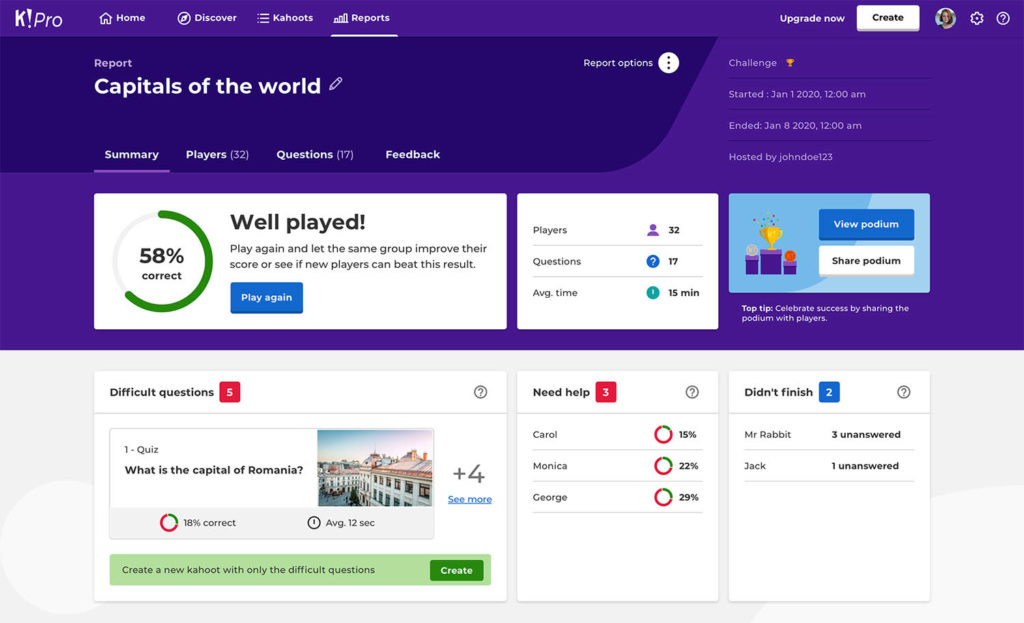
I’ve found it especially useful for quick revision sessions and practice tests for K–12 students because learners stay focused much longer than they would with static worksheets. The setup is fast, students can join without creating accounts, and the public quiz library saves me a lot of preparation time.
While it is not designed as a secure online exam tool, it remains one of the most effective teaching tools that reduce grading time for low-stakes assessments.
Pros:
- Instantly increases classroom participation in live and hybrid settings
- Students can join without creating an account, removing onboarding friction
- Easy to build quizzes quickly before a lesson
- Works across devices with no app install required
- Large library of pre-built kahoots across subjects and grade levels
Cons:
- Limited for serious assessment because question types are mostly multiple choice
- No detailed item-level reporting for tracking individual learning gaps
Best For: K-12 teachers who want live engagement during lessons, quick concept review before tests, end-of-unit warm-ups
User Rating: 4.7/5 (Capterra)
Pricing: Starts from $19/month.
4. Quizizz (Wayground) – Best Self-Paced Quiz Tool for Homework and Gamified K-12 Practice
Quizizz works really well when I want students to complete assignments independently without the pressure of live competition. The self-paced structure makes it one of my favorite tools for homework, revision, and practice tests for K–12 learners.
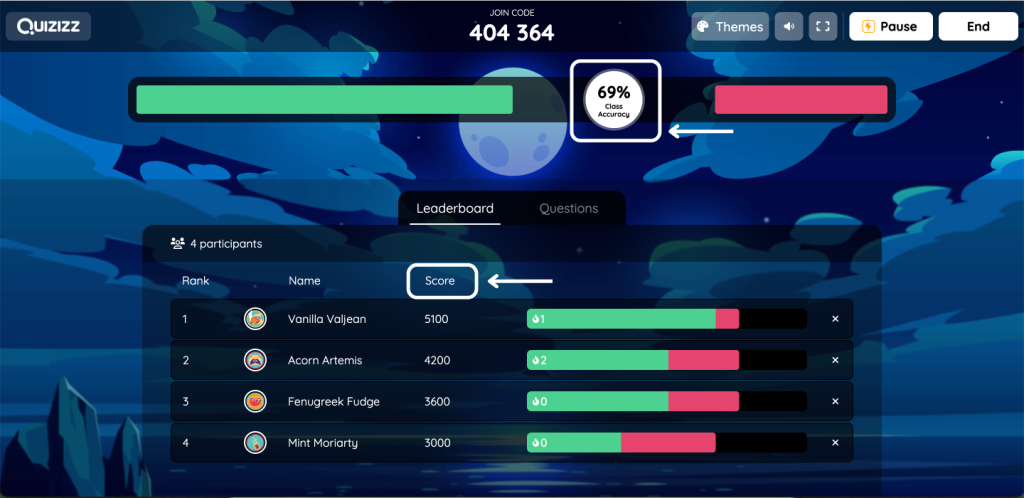
I also like that students receive instant feedback after every question because it improves retention and encourages self-correction. Compared to live quiz platforms, Quizizz feels more flexible for asynchronous teaching workflows.
It may not replace a secure exam software for teachers with proctoring, but for formative assessments and everyday student progress tracking, it performs extremely well. It also helps reduce grading time because most quizzes are automatically scored.
Pros:
- Self-paced format reduces anxiety for slower learners
- Homework mode sends quizzes directly to students with due dates
- Gamified feedback keeps students engaged through full assignments
- Strong question library across subjects and grade levels
- Supports short answer and fill-in-the-blank alongside multiple choice
Cons:
- Not secure enough for high-stakes exams or standardized test scenarios
- Analytics are basic compared to dedicated assessment platforms
Best For: K-12 teachers using quizzes for homework, formative assessments, and independent student practice
User Rating: 4.3/5
Pricing: Custom Quote
5. Nearpod – Best Interactive Lesson Tool for Real-Time Student Participation
Nearpod is one of the best tools I’ve used for turning passive lessons into highly interactive online classes. Instead of presenting static slides, I can run polls, quizzes, collaborative boards, and drawing activities directly inside the lesson.
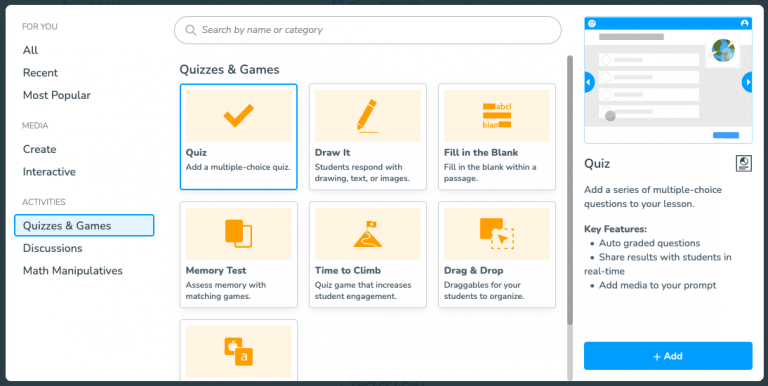
The real-time response dashboard helps with student learning gap analysis because I can immediately see who understands the concept and who needs support. I also like how smoothly it works with Google Slides and PowerPoint, which saves a lot of preparation time.
In many ways, Nearpod sits somewhere in the middle of the LMS vs quiz maker conversation because it combines instruction, engagement, and assessment inside one teaching workflow.
Pros:
- Student-paced and teacher-led modes give flexible control over lesson delivery
- Real-time participation data shows who is engaged and who has fallen behind
- Built-in activities like draw it, polls, and open-ended questions replace passive viewing
- Works with existing Google Slides and PowerPoint files
- Virtual field trips and 3D models bring difficult concepts to life
Cons:
- Free plan limits the number of participants and features significantly
- Can feel overwhelming for teachers new to interactive lesson formats
Best For: Teachers running interactive lessons in live or hybrid classes, educators who want engagement data during lessons
User Rating: 4.7/5
Pricing: Starts from $159/year.
6. Edpuzzle – Best Video Learning Tool for Interactive and Flipped Classroom Teaching
Edpuzzle completely changed how I use videos in online teaching because students can no longer passively watch lessons without participating. I can embed questions directly into videos, prevent skipping, and receive detailed reports showing how each learner responded throughout the lesson.
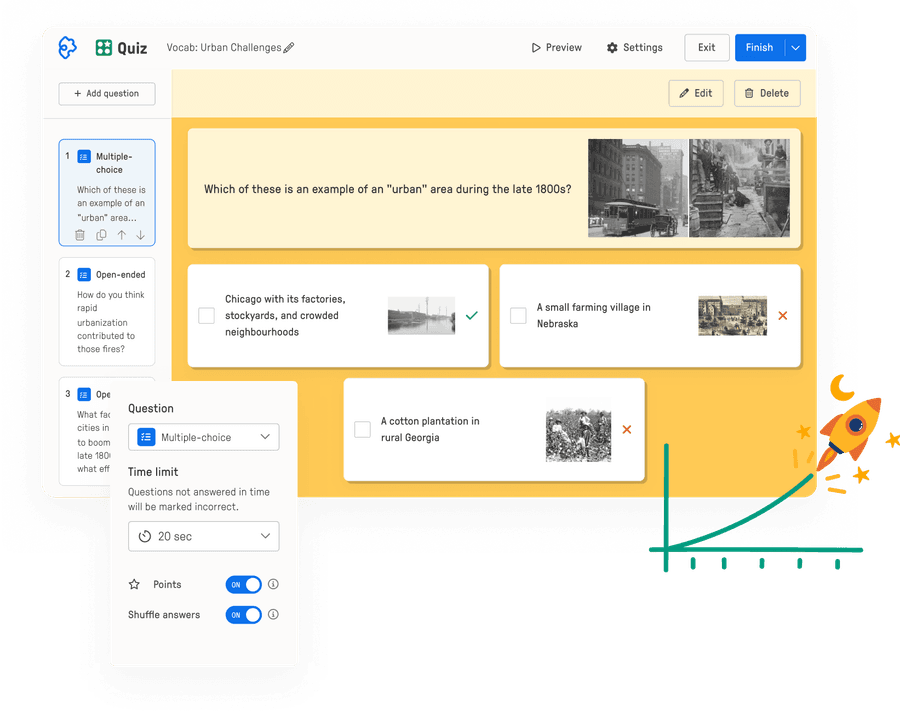
That makes it incredibly useful for flipped classrooms and hybrid learning environments where accountability matters. I’ve also found it helpful for identifying learning gaps because I can pinpoint exactly where students struggled during a video lesson.
While it is not a full higher education assessment software platform, it works extremely well alongside other tools that focus on quizzes, grading, and student progress tracking.
Pros:
- Prevents students from skipping through video lessons
- Embedded questions check comprehension in real time during the video
- Works with YouTube, Khan Academy, and uploads videos
- Auto-graded questions reduce teacher workload significantly
- Ideal for flipped classroom models where video is the primary content delivery
Cons:
- Limited to video-based content, so it doesn’t replace broader lesson platforms
- Managing large libraries of edited videos can get complex over time
Best For: Flipped classroom teachers, educators using video as primary instruction, teachers in hybrid settings who assign video for homework
User Rating: 4.6/5
Pricing: Starts from $15/month (Billed Annually).
7. Google Classroom – Best Classroom Management Tool for Assignments and Student Progress Tracking
Google Classroom is the tool that keeps my entire online teaching workflow organized. I use it to distribute assignments, collect submissions, communicate with students, and manage class materials without juggling multiple apps. Since most students already understand Google Docs and Drive, the onboarding process is almost frictionless.
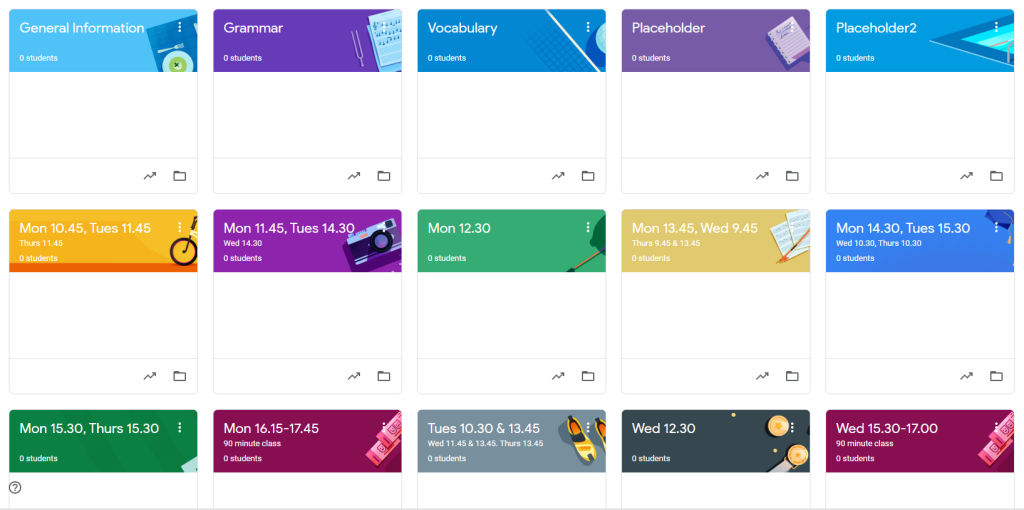
It also plays an important role in the LMS vs quiz maker discussion because it works more like a classroom management hub than a dedicated assessment platform. While it does not provide features like question bank randomization or advanced reporting, it remains one of the most practical platforms for assignment workflows, communication, and long-term student progress tracking.
Pros:
- Free for schools through Google Workspace for Education
- Seamless integration with Google Docs, Slides, Forms, and Drive
- Streamlines assignment distribution and submission collection at scale
- Grade book view gives a clean overview of class-wide progress
- Communication tools keep students and parents informed without switching apps
Cons:
- Does not offer secure exam settings, so it needs a dedicated quiz tool alongside it
- Customization is limited compared to full LMS platforms
Best For: Teachers at any level who want a clean, organized hub for assignments, submissions, and class communication
User Rating: 4.6/5
Pricing: Starts from $4/license/month
8. MagicSchool AI – Best AI Tool for Lesson Planning and Reducing Teacher Admin Work
MagicSchool AI feels like a productivity layer built specifically for teachers who are overwhelmed by planning and grading. I use it to generate quizzes, lesson plans, differentiated assignments, rubrics, and parent communication drafts much faster than I could manually.
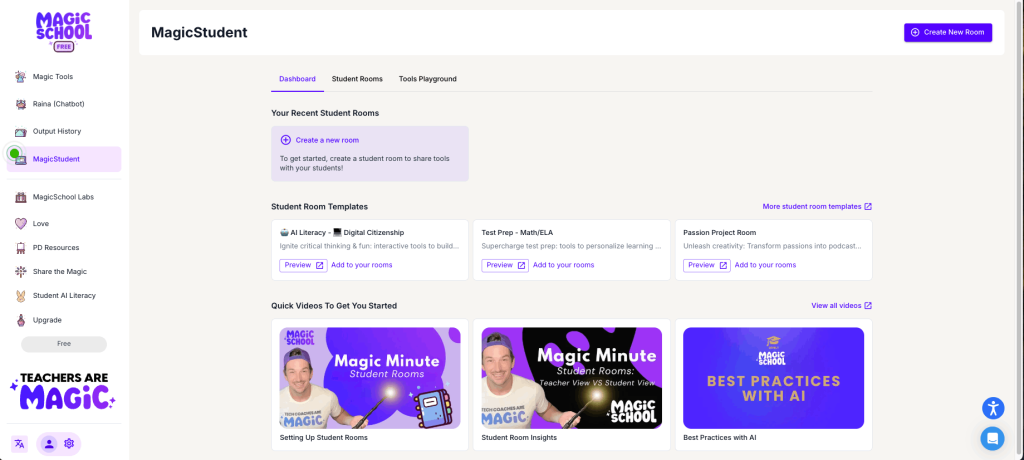
Unlike generic AI chatbots, the outputs feel much more classroom-ready because the platform is built around actual education workflows. It easily qualifies as one of the best teaching tools that reduce grading time because it removes repetitive administrative work from my day.
While I still review every output before using it with students, it dramatically speeds up lesson preparation and helps reduce burnout for busy educators.
Pros:
- Generates full lesson plans from a topic, standard, or grade level in seconds
- Differentiates content for multiple reading levels automatically
- Creates rubrics, feedback templates, and parent communication drafts
- Built specifically for education, so outputs are classroom-appropriate
- Saves teachers 5 to 10 hours per week on administrative prep work
Cons:
- AI outputs always need teacher review before using with students
- Newer tool, so the content library and integrations are still expanding
Best For: Teachers overwhelmed by lesson prep and grading admin, educators looking to use AI without the risk of generic chatbot outputs
User Rating: 4.7/5
Pricing: Starts from $8.33/user/month
9. Canva for Education – Best Tool for Visual Learning Materials and Classroom Presentations
Canva for Education helps me create much more engaging online lessons without needing advanced design skills. I use it for presentations, infographics, worksheets, classroom posters, and collaborative student projects.
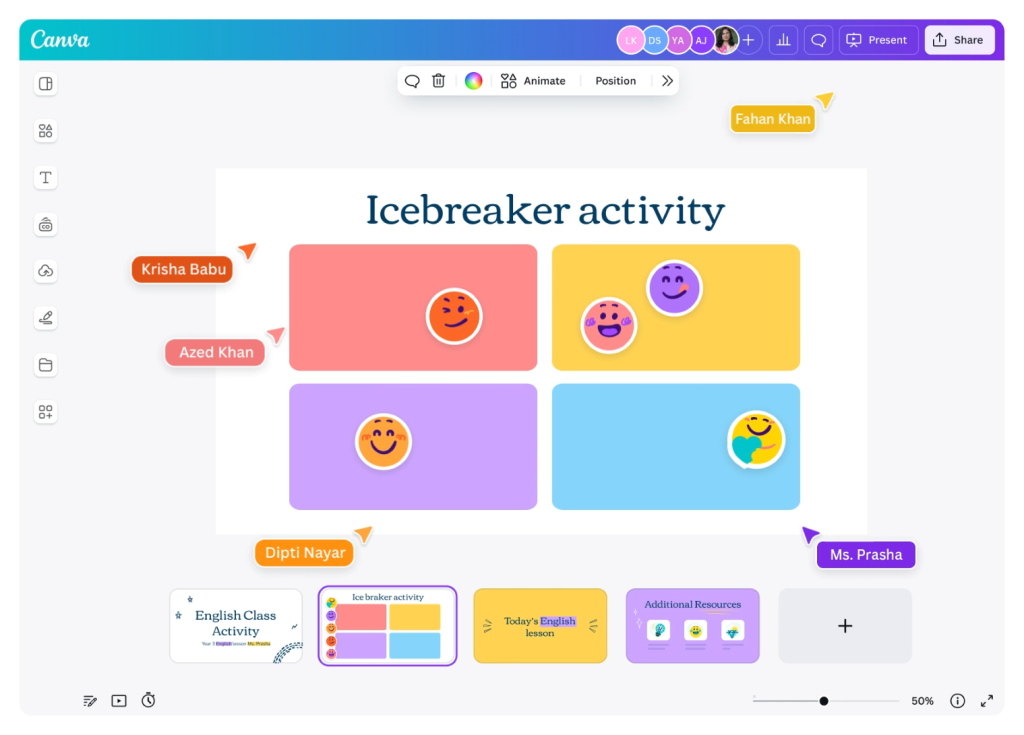
Since attention spans are shorter in virtual classrooms, visual learning materials make a huge difference in keeping students focused. The education templates save a lot of time, especially when I need polished lesson slides quickly.
I also like that students can collaborate together inside Canva during online projects. While it is not a classroom quiz maker or assessment platform, it pairs really well with quiz and reporting tools to create a more complete online teaching experience.
Pros:
- Free for verified K-12 teachers and students through Canva for Education
- Thousands of education-specific templates make design fast
- Presentation mode includes interactive elements and video embeds
- Students can collaborate on designs in real time
- Works across devices with no software installation
Cons:
- Not a teaching delivery platform, so it works as a creation tool only
- Advanced brand control features are locked to paid Canva plans
Best For: Teachers creating visual learning materials, lesson slides, and student project assignments
User Rating: 4.7/5
Pricing: Free for verified educators
10. Zoom – Best Live Teaching Platform for Virtual Classroom Management
Zoom is still the platform I trust most for live online teaching because it handles virtual classrooms reliably across different devices and internet conditions. I regularly use breakout rooms for peer collaboration, group discussions, and smaller activities because they make online learning feel much more interactive.
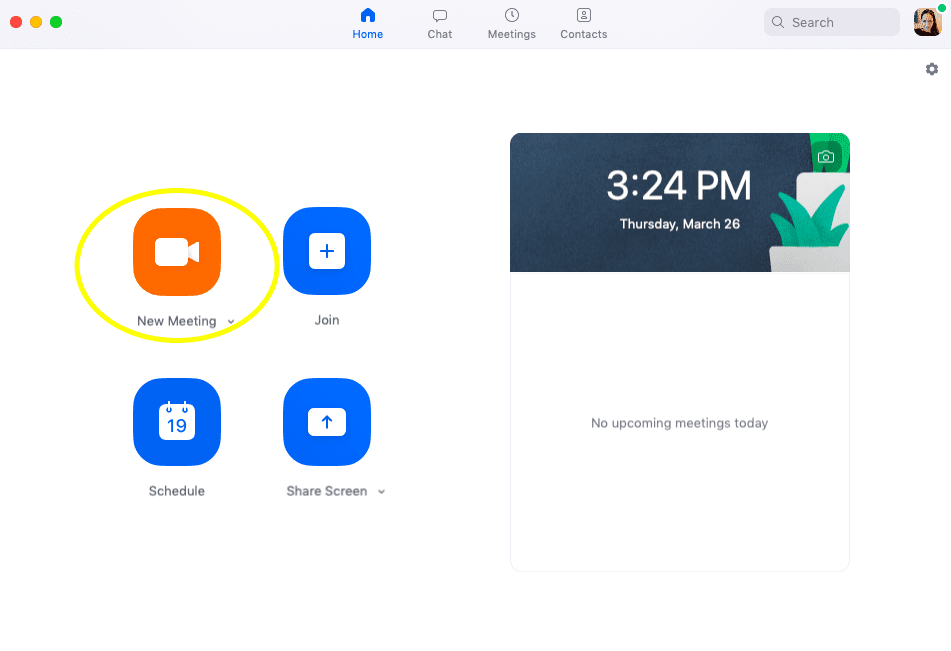
Features like polling, reactions, and cloud recordings also help maintain engagement during longer sessions. While Zoom is not designed as a secure online exam tool, it integrates well with platforms used for assessments and grading.
For teachers running hybrid classrooms, coaching sessions, or university lectures, Zoom remains one of the most reliable solutions for structured live online instruction.
Pros:
- Breakout rooms enable small group work and peer collaboration during live sessions
- Polling and reaction tools create engagement during lectures
- Cloud recording with automated transcripts helps students review content later
- Waiting room and meeting controls reduce disruptions
- Works reliably at scale for large webinars or small tutoring sessions
Cons:
- Zoom fatigue is a real concern for daily use without intentional session structure
- Not a content delivery or assessment tool on its own
Best For: Any teacher running live online classes, tutors, hybrid classroom instructors, university faculty
User Rating: 4.6/5
Pricing: Starts from $14.16/month
11. Padlet – Best Collaboration Tool for Student Participation and Interactive Discussions
Padlet is one of the easiest ways I’ve found to increase participation during online discussions because students can contribute ideas without feeling pressured to speak publicly. I use it for brainstorming activities, collaborative boards, reflections, exit tickets, and creative project sharing.
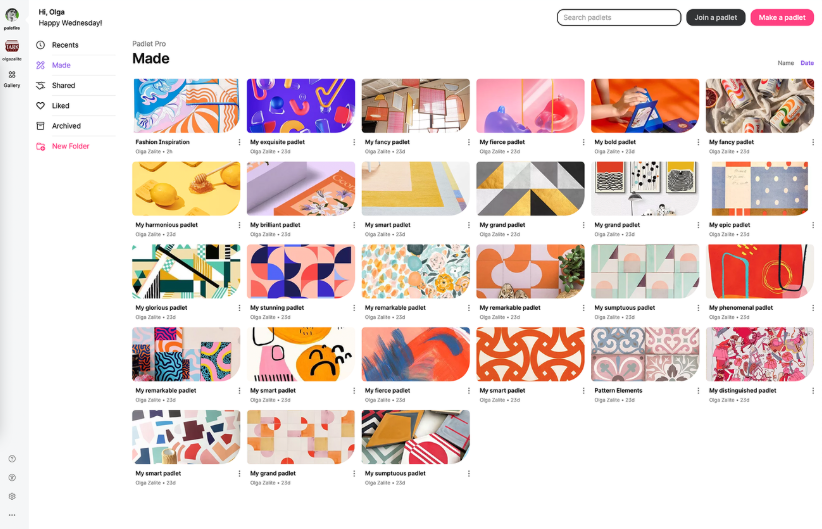
The visual format keeps students engaged and makes participation feel much more natural than standard discussion threads. It works especially well alongside tools focused on grading and assessments because it strengthens classroom interaction rather than testing.
When teachers compare platforms in discussions like Kahoot vs Quizizz vs ProProfs for teachers, Padlet fills a completely different role by focusing on collaboration, creativity, and student voice instead of quizzes or exams.
Pros:
- Works without student accounts, removing the signup barrier entirely
- Highly visual format keeps participation visible and motivating
- Supports multiple board formats: wall, shelf, stream, timeline, and map
- Teachers can moderate content before it goes live
- Easy to embed into Google Classroom or any LMS
Cons:
- Free plan limits users to three active padlets at a time
- Not designed for structured assessment or graded activities
Best For: Teachers who want to increase student participation, collaborative discussion boards, brainstorming activities, and creative project sharing
User Rating: 4.9/5
Pricing: Starts from $300 /year for 10 teachers
Top 3 Tools for Teachers
The best teaching tools don’t just help deliver lessons. They save time, improve student engagement, and make it easier to track learning outcomes. Based on my experience testing online teaching platforms, these three tools stand out for different reasons.
1. ProProfs Quiz Maker
ProProfs Quiz Maker is my top choice when I need to create quizzes, conduct secure assessments, and monitor student performance from one platform. The AI quiz generator can build complete quizzes from topics, documents, webpages, videos, or YouTube links within seconds. I also like the built-in proctoring, browser lockdown, auto-grading, and detailed reporting features. It works well for teachers who need both classroom assessments and secure online exams.
2. Kahoot!
Kahoot! is one of the best tools for making online classes more interactive and engaging. I often use it for live quiz games, concept reviews, and quick knowledge checks because students actively participate throughout the session. The platform is easy to set up, and students can join without creating accounts. It’s particularly effective for boosting classroom energy and participation.
3. Quizizz
Quizizz works best when I want students to complete assignments or practice activities at their own pace. The platform combines gamification with automated grading, making homework and formative assessments much easier to manage. Students receive instant feedback after each question, which helps reinforce learning. For independent practice and progress tracking, it’s one of the most reliable options available.
How I Selected These Online Teaching Tools
The evaluation of the apps for education included in this article follows a practical and unbiased approach focused on what actually helps teachers teach better online.
Since educators today deal with grading overload, student disengagement, fragmented workflows, and online assessment challenges, I evaluated each online teaching and learning platform based on how effectively it solves those real classroom problems.
1. User Reviews / Ratings
I looked closely at real user feedback from trusted review platforms like G2 and Capterra to understand how these teacher tools online perform in everyday teaching environments. Reviews helped me identify recurring strengths, common frustrations, reliability issues, and which tools teachers consistently rely on for online teaching, student engagement, and classroom management.
2. Essential Features & Functionality
I evaluated each platform apps for teachers based on the features teachers actively search for today, including live teaching capabilities, auto-graded classroom quizzes, student progress tracking, interactive lessons, AI-powered workflows, secure assessments, and collaboration tools.
Platforms offering advanced functionality like question bank randomization, timed tests for students, item-level quiz reports, and student learning gap analysis received additional consideration because these features directly address modern online teaching challenges.
3. Ease of Use
I prioritized the best free ed-tech tools with simple interfaces, minimal setup requirements, intuitive navigation, and workflows that work well even for non-technical educators. The best online teaching tools should reduce complexity, not add to it.
4. Customer Support
I also considered the quality of customer support because teaching disruptions can quickly impact students. I reviewed how effectively companies support educators during onboarding, troubleshooting, classroom setup, and daily usage.
Reliable support becomes especially important for schools, coaching institutes, and educators conducting live classes or running a secure online exam tool for assessments.
5. Value for Money
To evaluate value, I compared pricing against practical classroom outcomes rather than feature quantity alone. I looked at whether each tool genuinely helps teachers save time, improve engagement, simplify grading, or streamline online teaching workflows.
Free plans, educator discounts, scalability, and long-term usability were also important factors in determining overall value.
6. Personal Experience / Expert Opinion or Favorites
Along with user feedback and research, I also considered practical teaching workflows and educator preferences discussed across teacher communities, online forums, and professional discussions.
I focused on tools that consistently appear in conversations around topics like “Best tools for teachers to create secure online exams,” “Teaching tools that reduce grading time,” and “Best online assessment tools for K-12 teachers.” The final list reflects tools that are not only popular but genuinely useful in real online teaching environments.
What Online Teaching Stack Do You Actually Need?
Stop juggling disconnected apps. Here’s the focused stack I’d build today.
| Need | Recommended Tool |
| Secure quizzes and exams | ProProfs Quiz Maker |
| Live online teaching | Zoom |
| Assignments and classroom management | Google Classroom |
| Interactive lessons | Nearpod |
| Video-based learning | Edpuzzle |
| AI lesson planning | MagicSchool AI |
| Student collaboration | Padlet |
Most teachers don’t fail because they lack tools. They struggle because they’re juggling too many disconnected tools. Pick one per category. Stick with it for a semester. Then optimize.
What Do Teachers Actually Need From Online Teaching Tools?
The right tools solve real problems. Here are the three biggest ones that you, as an online teacher, are facing right now.
1. Less Grading, Not More Software
- Auto-graded quizzes that produce instant results
- Item-level reports that show exactly where each student is struggling
- Question bank randomization so no two students get the same test
- AI quiz generators that cut lesson prep time in half
- Learning gap analysis tools that surface weak spots without manual review
2. Better Student Engagement
- Gamified quizzes and best ed-tech apps for students that make practice tests feel like a game
- Live polls and collaborative boards for real-time participation
- Interactive video lessons powered by modern apps for education where students can’t just sit passively
- Student-paced activities that adjust to individual learning speed
- Discussion prompts that actually get responses
3. Secure Online Exams
- Browser lockdown or restriction tools
- Timed tests for students with auto-submit
- Question shuffling and answer randomization
- Secure login systems for proctored exams
- Detailed attempt logs for academic integrity
How Is AI Actually Changing Online Teaching?
AI is not replacing me as a teacher. Instead, it’s helping me spend less time on repetitive administrative tasks and more time focusing on teaching and supporting my students.
Here’s how AI is helping me teach online more effectively:
- Personally, I can generate full quizzes from a topic or document in under two minutes
- Using AI, I can create differentiated assignments for multiple reading levels automatically
- Thanks to automation, I can auto-grade assessments and produce item-level reports without spending hours reviewing results
- With AI support, I can draft lesson plans, rubrics, and parent communication much faster than any manual process
- Through AI-powered insights, I can identify student learning gaps from quiz data before I even review the results
- By leveraging AI analytics, I can summarize classroom performance across an entire cohort in seconds
I get the best results from AI when I’m not trying to automate teaching. I’m using it to eliminate the admin work that eats three to four hours a day, so I can spend that time actually in front of my students.
Common Mistakes Teachers Make When Choosing Online Teaching Tools
Knowing what not to do usually saves more time than chasing the “perfect” platform.
1. Using Too Many Apps
Trying to manage too many disconnected tools creates confusion for both teachers and students.
Fix:
- Build a simple teaching stack instead of using 10+ apps
- Choose tools that combine teaching, quizzes, and student progress tracking
- Prioritize platforms that integrate with Google Classroom or your LMS
- Keep one core tool for assessments and one for engagement
2. Choosing Engagement Over Learning Outcomes
Fun online teaching platforms don’t always show whether students are actually learning.
Fix:
- Pair gamified apps with a secure online exam tool
- Use platforms with student learning gap analysis
- Look for item-level quiz reports and reporting dashboards
- Combine engagement tools with assessment-focused platforms
3. Ignoring Reporting & Analytics
Without reporting, it becomes harder to identify struggling students quickly.
Fix:
- Choose teacher teaching tools with auto-graded classroom quizzes
- Prioritize teacher teaching tools with actionable analytics
- Use tools that simplify grading and reduce admin work
- Track trends instead of only final scores
4. Not Testing Tools on Real Student Devices
A platform that works on your laptop may fail on student devices.
Fix:
- Test tools on Chromebooks, tablets, and phones
- Check performance on slower internet connections
- Avoid tools with heavy setup requirements
- Run a small pilot before full rollout
5. Choosing Tools That Don’t Fit Existing Workflows
Poor integrations create more manual work instead of saving time.
Fix:
- Choose tools that connect with Google Classroom or LMS platforms
- Avoid duplicate grading and reporting workflows
- Prioritize tools with easy assignment syncing
- Look for platforms that simplify daily teaching operations
Make Online Teaching More Interactive, Organized & Effective
The best online teaching tools are not the ones with the most features. They’re the ones that remove friction from your day-to-day teaching workflow. After reviewing these platforms, one thing became very clear: teachers need fewer disconnected apps and more tools that save time, improve engagement, simplify grading, and support meaningful learning outcomes.
Whether your biggest challenge is live teaching, student participation, lesson planning, or assessments, building the right stack of online teaching platforms makes a huge difference.
If I had to recommend one tool to anchor that stack, it would be ProProfs Quiz Maker. It solves several major pain points at once with AI quiz generation, secure online exams, auto-graded classroom quizzes, student learning gap analysis, question bank randomization, and detailed reporting.
It works especially well for K-12 teachers, coaching institutes, and higher education programs that need reliable assessments without extra complexity. Start by identifying your biggest teaching bottleneck, pick one tool that solves it well, and build from there.
Frequently Asked Questions
What Are the Best Tools for Teachers to Create Secure Online Exams?
ProProfs Quiz Maker is the strongest option for secure online exams. It includes question bank randomization, timed tests with auto-submit, browser restriction settings, and attempt logs for academic integrity. Platforms like Google Forms and Quizizz lack these security layers, making them unsuitable for high-stakes assessments.
Which Online Teaching Tools Reduce Grading Time the Most?
ProProfs Quiz Maker and MagicSchool AI are the two tools that cut grading time most significantly. ProProfs auto-grades every quiz and produces item-level reports instantly. MagicSchool AI handles rubric creation, feedback drafting, and report card comments. Together, they eliminate most of the manual grading and prep work in a typical teaching week.
What Is the Best Quiz Maker for Identifying Student Learning Gaps?
ProProfs Quiz Maker is purpose-built for learning gap analysis. Its item-level quiz reports show exactly which questions each student got wrong, which topics need reteaching, and where the class as a whole is struggling. This level of reporting is not available in casual quiz tools like Kahoot! or Quizizz.
What Is the Difference Between an LMS and a Quiz Maker?
An LMS (Learning Management System) manages the full course workflow, including content delivery, assignments, communication, and grading. A quiz maker focuses specifically on assessments. Google Classroom functions as a lightweight LMS. ProProfs Quiz Maker is a dedicated assessment tool. Many teachers use both together because an LMS alone does not offer the secure exam settings, randomization, and reporting depth of a standalone quiz maker.
What Are the Best Online Assessment Tools for K-12 Teachers?
For K-12, the strongest combination is ProProfs Quiz Maker for structured assessments and learning gap tracking, Kahoot! for live review, and Quizizz for self-paced homework practice. Each covers a different assessment moment: formal testing, live engagement, and independent practice.
Which Online Teaching Tools Work Best for Coaching Centers?
Coaching centers need tools that support certification workflows, timed exams, and custom certificates for learners. ProProfs Quiz Maker handles all three natively. Pair it with Zoom for live sessions and Google Classroom for assignment management, and you have a complete coaching delivery stack.
How Do I Prevent Cheating in Online Exams?
The most effective anti-cheating setup combines question bank randomization so no two students see the same test, answer shuffling within questions, timed tests with auto-submit, and browser restriction settings that prevent tab switching. ProProfs Quiz Maker includes all of these in a single platform, making it the most practical option for teachers who need exam integrity without a separate proctoring tool.
Let ProProfs AI Build a Quiz

 We'd love your feedback!
What did you like & how can we make it even better?
 Thanks for your feedback!
 Ask Your Question
Have a question? Get expert help to make your decision easier.